Claude Usage Limit and Codex Usage Limit: When They Reset
When Claude or Codex suddenly stops in the middle of editing a document or fixing code, it's easy to panic. The screen mixes up several different terms, context, 5 hours, weekly limit, and it's hard to tell right away whether you just need to wait or whether something needs fixing.
If you've hit a usage limit, waiting fixes it. How long you wait depends on which limit you hit. A 5-hour window clears within 5 hours at most. A weekly window clears at that week's reset time, which can mean waiting up to a week. A context warning is a different story. Waiting is not the answer there. So the first thing to do is figure out which one you're looking at.
| What's on screen | What it is | What to do |
|---|---|---|
| "This conversation is long," auto-compact | Context warning | Waiting won't clear it. Compact or start a new conversation |
| 5-hour, weekly, reset time | Usage limit | Waiting clears it. Check below for when |
That distinction is where this post starts. From there it covers why limits exist, how context differs from usage, the 5-hour window versus the weekly window, how to check both tools, the status line you can watch continuously, and how to keep working without waiting. There's a reason both tools get covered together: they run on the same basic setup, a 5-hour window layered with a weekly window, so understanding one gets you most of the way to the other. The details, per-model limits, what counts toward a shared pool, differ by tool, and those are covered separately below.
- usage limit
The boundary on how much work can be processed within a set time window. It's different from context, which is how much has piled up in the current conversation, questions, answers, and files.
Why usage limits exist: compute capacity and fair distribution
Getting AI to do work isn't free computation. Every answer is the output of running expensive GPU hardware in an AI company's data center. Once you think of your subscription fee as your share of that shared hardware, it's easier to see why limits exist at all. This isn't the official explanation of the pricing design, just an analogy that helps it click.
The reason for limits, in the companies' own words, is spelled out in both companies' developer-facing API rate-limit documentation. Anthropic's official docs describe the purpose of API limits as preventing abuse, managing capacity, and distributing resources fairly. OpenAI's official docs list the same three reasons: preventing abuse, keeping access fair for everyone, and managing load across the whole server fleet. These are API-document principles, but since limits actually move together with compute capacity, as shown below, it's reasonable to read consumer limits through the same logic.
The companies have also said directly that limits are tied to hardware. When Anthropic announced a deal to add compute capacity, it said in the same breath that Claude Code's 5-hour limit was doubling as a result. Between that announcement and the introduction of weekly limits in 2025, the pattern holds: when hardware grows, limits grow, and when demand surges, they tighten. When weekly limits first appeared in 2025, Anthropic told the press the background was a demand surge, constrained compute, and a small number of users sharing or reselling accounts.
Put simply, the plan is roughly the tier of GPU access you're renting, and the limit is the gauge that keeps you within what you paid for. Hitting a limit isn't a malfunction. It's a signal that you've reached your own gauge.
Context vs. usage: what waiting fixes and what it doesn't
Context is the memory capacity of one conversation. Usage is how much work you can do per unit of time. The two warnings sound similar and show up together, which is confusing, but the fix is opposite, so sorting them out comes first.
Context is the total of the questions, answers, and files that have piled up in the current conversation. As it nears its ceiling, a warning appears, and that does not mean you've used up your subscription allowance. The conversation doesn't clear itself over time, so waiting isn't the answer. Letting Claude Code run auto-compact, which briefly summarizes what came before, or starting a new conversation with just what you need carried over, solves it on the spot.
A usage limit is the opposite: time is the answer. It's how much you can use in a fixed time window, so once that window passes, it opens back up. If the screen mentions 5 hours, weekly, or a reset time, this is the one.
Types of usage limits: the 5-hour window, the weekly window, per-model
Both Claude and Codex layer a short window and a long window. Either one filling up stops you, so how long you wait depends on which window you hit.
| Window | Claude | Codex |
|---|---|---|
| Short window | 5-hour window | 5-hour window |
| Long window | Weekly window (all models + per-model) | Weekly window |
| Counted together with | Chat and Cowork under the same membership tier | ChatGPT Work and similar features on the same plan |
Free plans differ between the two. Claude Code isn't included in the free Claude plan, you need Pro or above, and the screens covered in this post assume that. Codex CLI is usable on the free ChatGPT plan, but both its 5-hour limit and weekly limit are set far smaller than on paid plans.
The 5-hour window moves with your recent usage
The 5-hour window looks back five hours from right now. As time passes, the window moves along with it, and once older usage drops out of the window, that much becomes available again. That's why not everyone resets at the same clock time.
Codex's 5-hour window works the same way. OpenAI's official guidance explains that the 5-hour limit defines what counts toward each window, and how much you can use within a window varies by plan and model.
The weekly window: your own day and time is what counts
The weekly window separately caps usage accumulated over several days. The reset time varies by account, so Claude's web usage screen shows something like Resets Saturday 11:59 AM in your own account's day and time. Don't carry that example over as a shared reset time for every account.
The two windows behave differently on screen too. Reopen the same screen a few hours apart and the reset time under Current session will have moved, while the weekly reset display keeps the same day and time. The 5-hour window shifts its reference point every time you use it, while the weekly window holds its place within that week. Whether the reference point shifts when the week turns over is something you can only confirm by watching it through the next reset, so plan your week around the day and time shown on your own screen.
Per-model limits: the rest can be full while one model is still blocked
Claude's weekly limit isn't a single line. There's a limit for all models combined and a separate limit for a specific model.

As in the screenshot, the overall figure can sit at 59 percent while one specific model's row is already at 100 percent. That means you can hit a wall on that model first even while your overall limit still has room. In that case, you can pick a different model with /model and keep working. Going the other way, if the all models limit is full, switching models doesn't reopen it. On Team and Enterprise, limits are allocated per member, and Claude chat and Cowork used under the same membership tier share this limit too.
How to check your limit: both tools, web and terminal
There are two places to check for each tool. The one that covers your whole account is accurate; the one inside the terminal is fast.
| Tool | Whole account (accurate) | Terminal (fast) |
|---|---|---|
| Claude | Web settings usage screen, desktop app settings | /usage inside Claude Code |
| Codex | ChatGPT web settings' Usage screen, desktop app settings | /status inside Codex CLI |
Claude: use a free limit reset first if you have one
Since the Opus 5.5 launch on September 22, 2026, Anthropic has been granting subscribers a limit reset. The official guide says resets are given occasionally to eligible plans, restore either the five-hour or the weekly window immediately depending on which one is shown, can be used before you hit a limit, cannot be undone, show an expiry in Settings > Usage when they have one, and disappear if you downgrade or cancel. The button lives in Settings > Usage on the web and desktop app and on the limit message. It is not available on mobile or in the Claude Code terminal, but limits are account-wide, so a reset used on the web applies to Claude Code too.
Claude: web settings and /usage
The most accurate place is the web settings usage screen. It's your whole account's usage as collected server-side, combining every device and any claude.ai activity, and it's only visible to paid subscribers. If you use the desktop app, you can see the same screen inside the app's own settings without opening a browser.
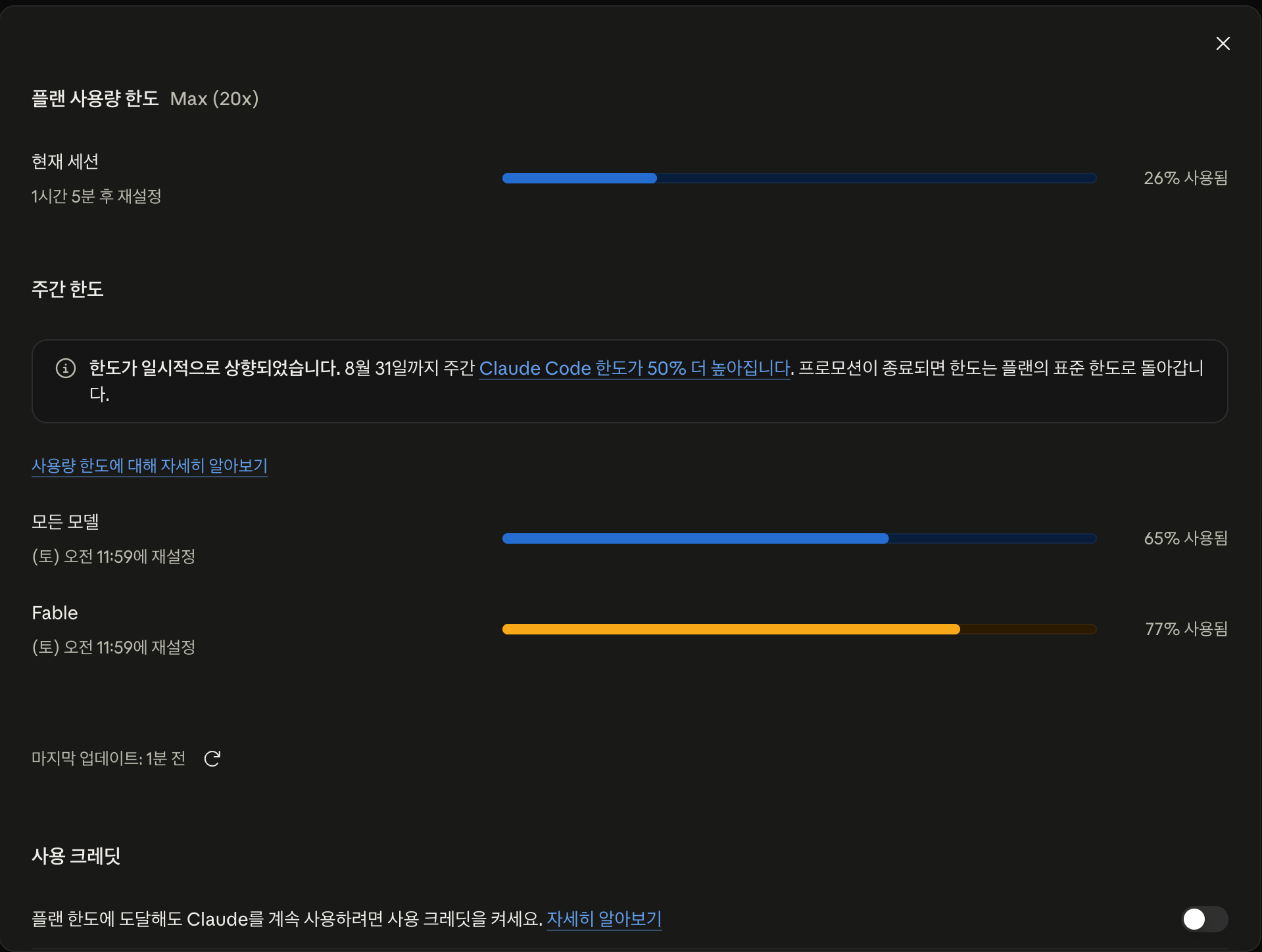
There are two things to read here. Current session shows the 5-hour window's usage rate and time left until reset, and the weekly limit shows usage for all models and per-model, along with the reset day and time. The numbers in the screenshot are from a Saturday afternoon shoot, so check your own account's numbers on your own screen.
Inside Claude Code, type /usage into the same input line you use for regular questions, not your operating system's command line.
/usageOne thing to watch for here. Pressing d shows the last 24 hours and w shows the last 7 days, but that's the analysis window for activity, not the limit's own clock. The detailed percentages on this screen are based on the current device's local record, so activity on other devices and on claude.ai can be missing, and Showing last-known usage isn't an error, it's the last record fetched within the past 60 minutes (press r to refetch). A longer local history is viewable with npx ccusage@latest, but ccusage is a community tool, not an official Anthropic tool.
Codex: ChatGPT settings and /status
Codex's whole-account usage is on the Usage screen in ChatGPT's web settings. OpenAI's official guidance recommends checking remaining limit and reset time on the settings Usage screen before a big task or when you hit a limit, and says that once you hit a limit, depending on your account you can wait for the reset, use a stored reset, or continue on credits.
If you use the ChatGPT desktop app, you can see the same screen under the app's own Usage settings. Inside the terminal, run /status in Codex CLI, the equivalent of what /usage does on the Claude side.
/statusOne detail differs here. Codex's limit isn't Codex's alone, it shares a usage pool with other features on the same plan, like ChatGPT Work. If your limit dropped without using Codex, another feature may have drawn from the same pool.
Watching continuously: the status line
Rather than checking after you've already run out, it's better to see it while you're working. Claude Code can keep a usage rate visible in the status line at the bottom of the screen, and you don't need to write a script, just describe what you want in the input line.
/statusline show me the 5-hour limit and weekly limit as percentagesThe status line draws on the 5-hour window's usage rate (rate_limits.five_hour.used_percentage) and the weekly window's usage rate (rate_limits.seven_day.used_percentage), along with each one's reset time. This field is available to Pro and Max subscribers and appears only after Claude Code has sent its first response, so it helps to add a note asking it to display fine even when limit data isn't there yet. The script runs on your own machine, so it doesn't cost tokens, and you can remove it with /statusline delete whenever you no longer need it.
Not waiting: credits and resets
Each tool has its own way to keep going without waiting for the reset time. What they share is that all of them are either spending beyond the subscription fee or a limited, one-off resource.
| Option | Tool | What it is |
|---|---|---|
| Usage credits | Claude | Pay-as-you-go, managed through /usage-credits |
| Free limit reset | Claude | A one-time reset granted to eligible plans, used from Settings > Usage on the web, since September 22, 2026 |
| Credits | Codex | Pay-as-you-go, billed by the token |
| Paid instant reset | Codex | Restores the 5-hour and weekly window immediately on purchase, Plus and Pro individual accounts only |
| Banked reset | Codex | A one-time free reset banked to the account, granted as a promotion |
Claude: set a monthly spending cap before turning credits on
Type /usage-credits into Claude Code's input line to manage enabling and buying credits, your monthly spending cap, and auto-reload.
/usage-creditsPersonally, I'd set a monthly spending cap before turning credits on. Trying to push through one urgent task with auto-reload left on can mean spending more than expected. Changing the monthly spending cap requires billing access, so Team and Enterprise members may need to ask an admin. What causes credits to get spent unexpectedly, and what to watch for with billing, is covered separately in Claude Code usage credits.
Codex: credits, paid instant resets, banked resets
Codex has three options. Once you've used up your included limit, you can keep going on credits billed by the token, and ChatGPT Plus and Pro individual accounts can buy a paid instant reset to restore 5-hour and weekly usage on the spot. Per the official guidance, this paid reset isn't offered on Free, Go, Business, or Enterprise, and when only the 5-hour limit has been reached, the purchase banner doesn't appear automatically (though it can sometimes be found and bought directly under the desktop app's Usage settings).
A banked reset is a one-time free reset that's already banked to the account. It's what turns up in searches for things like a "Codex reset coupon" or "reset ticket." Using one refreshes both the 5-hour and weekly window, and the weekly reset time gets recalculated from that point. Official documentation states this is a promotional grant with no guarantee of future grants. There have been cases of it being handed out as a waitlist reward around the September 2026 GPT-6 Astra launch, but it shouldn't be planned around as a standing program.
- Claude and Codex limits aren't a malfunction, they're closer to the gauge on a subscription that shares GPU access. Both companies' developer API docs cite abuse prevention, capacity management, and fair distribution as the reasons.
- A context warning means the current conversation is full, and waiting doesn't fix it. Auto-compact or a new conversation solves it on the spot.
- Usage limits work the same way in both tools: a 5-hour window layered with a weekly window, and either one filling up stops you. Claude has separate per-model limits, so a specific model can block you first even while the overall limit has room.
- Checking is Claude's web usage screen and
/usage, and Codex's ChatGPT settings Usage screen and/status. The reset time shown on your own screen is what counts. - To watch continuously, set up Claude Code's status line with
/statusline. - To avoid waiting, Claude has a free limit reset and usage credits; Codex has credits, paid instant resets, and banked resets. The two free resets are limited resources; the rest is extra spending.
Frequently asked questions
Where do I check my Claude usage limit?
Type /usage into Claude Code's input line to see the current device's usage analysis. For whole-account usage across multiple devices and claude.ai, check claude.ai/settings/usage. To keep it visible at all times, describe what you want to /statusline.
Where do I check my Codex usage limit?
Type /status inside Codex CLI to see remaining usage. Whole-account usage and reset time are on the Usage screen in ChatGPT web settings. Codex's limit shares a usage pool with other features on the same plan, like ChatGPT Work.
When does the Claude usage limit reset?
Claude's 5-hour window follows the current time, and the weekly window's reset time varies by account. Check the web usage screen for the current session's remaining time and the weekly reset day and time.
What's the Codex reset coupon or ticket people mention?
That's a banked reset. It's a one-time free reset banked to the account that, when used, restores both the 5-hour and weekly usage and recalculates the weekly reset time, granted by OpenAI as a promotion. Per official documentation, future grants aren't guaranteed, so it's a limited resource. Separately, Plus and Pro individual accounts can buy a paid instant reset.
Does Claude Code's limit share across models?
Claude Code's weekly limit has a separate limit for all models combined and a limit per model. If the overall limit is full, switching with /model won't restore it, but if only a specific model's limit is full, you can keep working with a different model.
If I see a context warning, does that mean I've used up my usage limit?
No. A context warning and auto-compact mean the current conversation is approaching the model's maximum input size. That's separate from the 5-hour or weekly usage limit, so don't wait it out, compact or start a new conversation instead.
Sources (10)Expand to see all sources
- Claude Help Center: What is a limit reset? (checked 2026-09-30)
- Anthropic official docs: purpose of API usage limits: abuse prevention, capacity management, fair distribution (developer-facing API rate-limit docs, doesn't directly describe Claude Code's consumer limit) (checked 2026-09-10)
- Anthropic official news: limit increase announced alongside a compute capacity deal (checked 2026-09-10)
- OpenAI official docs: purpose of API usage limits: abuse prevention, fair access, load management (checked 2026-09-10)
- OpenAI help center: the 5-hour window and weekly limit for Work and Codex (checked 2026-09-10)
- OpenAI help center: paid weekly limit resets: eligible plans and behavior (checked 2026-09-10)
- OpenAI help center: how banked resets work: promotional, no guaranteed future grants (checked 2026-09-10)
- TechCrunch: Anthropic spokesperson comment on the 2025 weekly limit rollout: demand surge and compute constraints (checked 2026-09-10)
- Anthropic official docs: managing Claude Code costs (checked 2026-09-10)
- Anthropic official docs: Claude Code status line: rate_limits fields are Pro and Max subscribers only, available after the first API response (checked 2026-09-10)