How to Connect a Local Folder to Claude's Desktop App (No Terminal Required)
A chat-based AI, by default, only reads files you drop directly into the conversation window. To let it open and edit everything inside a folder on your own computer, you need a separate app that connects that folder for you. In Claude, the desktop app is what does this.
Are you still dragging files into the chat window one at a time just to say "take a look at this"? That's fine for a single file, but it falls apart the moment you're staring at twenty documents scattered across a folder.
Install Claude's desktop app and attach a folder, and Claude opens the files inside it directly, no uploading required. It doesn't stop at reading, either. It can create new files and edit existing ones right there. Two conditions apply: the desktop app has to be running, and you need a Pro plan or higher. If the last lesson helped you pick which of Claude's five product branches to use, today you'll install the desktop app from that lineup and attach a folder on your own computer. If you're just here because you need to connect a folder to Claude right now, this lesson alone will get you there. This reflects how things stood in August 2026. These screens change often, so if a menu name doesn't match what you see, check the official documentation too.
- Workspace Folder
A folder on your own computer that you attach to a task in Claude's desktop app. Inside an attached folder, Claude can read, create, and edit files. A folder you haven't attached stays invisible to Claude, even if it's sitting on the very same machine.
What connectors read versus what the desktop app reads
In the earlier track, we connected Google Drive to Claude. What Claude read there lived on Google's servers. It didn't matter whether your laptop was even turned on, because the files were never on your laptop to begin with.
In practice, though, plenty of your files have never touched the internet. Think of the quote you left on your desktop, or the PDF sitting in your downloads folder. Connectors can't reach any of that, because none of it lives in the cloud. This is exactly where the desktop app steps in. The official docs draw the same line: attaching local files or folders is the job of the desktop app and Claude Code, and even a task you start from the web or mobile app can only reach your files while that computer's desktop app stays running.
Here's a way to picture the difference. A connector is like handing over the key to a storage locker in the cloud. Attaching a folder is like leaving open one drawer of your own desk. Claude can pull papers out of that drawer, edit them, and put new ones in, but only that one drawer. The rest stay shut.
| Comparison | Web connector | Desktop app folder connection |
|---|---|---|
| What it reads | Cloud services like Google Drive, Gmail, Notion | A folder on your computer's own disk |
| How you connect | Sign in with a service account and approve access | Pick a folder from a folder picker |
| What you need | A Claude account (Google Workspace connectors work on the free plan too) | The desktop app installed, plus a Pro plan or higher |
| Editing files | Whatever the service's own permissions allow | Read, create, and edit inside the attached folder |
| When the app is closed | Keeps working as normal | Local files are only reachable while the app is running |
You don't need to reconnect anything you already set up. Connectors carry over across web and desktop under the same account. What you're getting today is a new channel: the folder.
Installing the desktop app: where Mac and Windows diverge
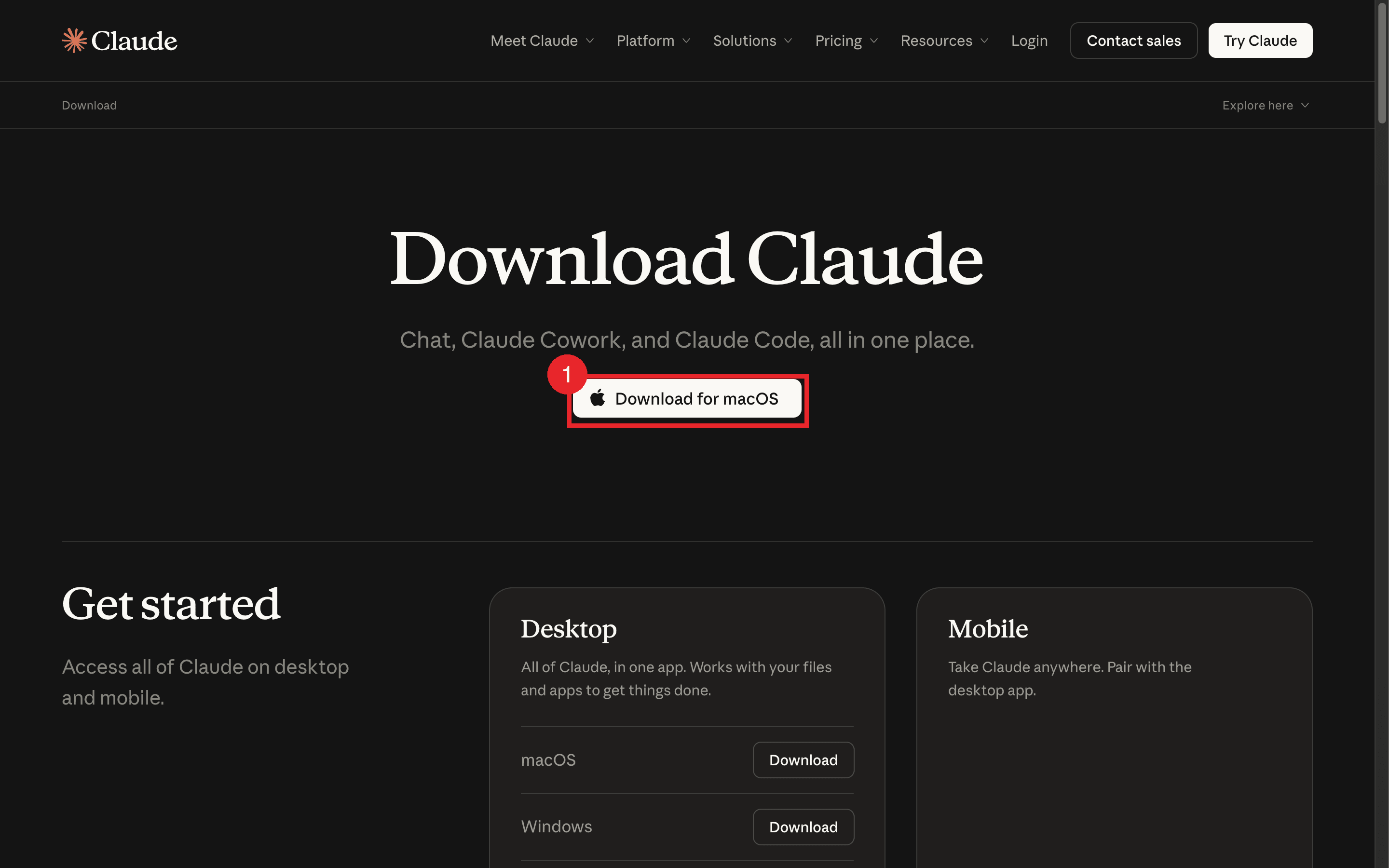
Both platforms download from claude.com/download. What differs is the install format and the requirements. Pick your environment below and you'll only see what applies to you.
Pick once and the rest of this track follows your choice.
On Mac, you'll download a .dmg file. Open it and drag the Claude app into your Applications folder, and installation is done.
There's one condition worth flagging. The app itself installs on macOS 11 (Big Sur) or later, but the folder-connecting feature we're covering today (Cowork) requires macOS 14 (Sonoma) or later (as of August 2026). Both Apple silicon and Intel (x64) chips work fine. On macOS 13 or earlier, the app opens, but there's no screen for attaching a folder.
On Windows, the install format decides the outcome. Today's folder-connecting feature (Cowork) only works from the .msix package (as of August 2026). Install the older .exe version instead, and the app opens normally, but Cowork is entirely missing, according to the official docs. If your work PC has the old version installed, you'll need to reinstall via .msix.
Three conditions apply: Windows 10 build 19041 (version 2004) or later (Windows 11 included), an x64 or Arm64 chip, and hardware virtualization turned on. You don't need to set up a Linux environment like WSL separately.
Before you install anything, there's a way to check whether your machine even qualifies. Anthropic publishes a Cowork readiness check for both Mac and Windows, and it needs no installation and no login. Run it, and "This computer is ready for Cowork" means you're good to go. If you're working off an older company laptop, running this first saves you the trouble of installing the app only to find out it's not ready.
Attaching a folder and giving it a first job
Once the app is open and you're signed in, it's time to attach a folder. You can pick a folder fresh for each task, but for your first time, setting it up as a project works better. Attach it once, and every time after that, picking the project brings the same folder along with it.
- Create a project. Open the Projects menu in the left-hand navigation and click the
+button. - Pick a starting point. Three options show up: Start from scratch (builds an empty project around a new folder), Import a project (brings in a project you were already using on claude.ai), and Use an existing folder (points at a folder you already have). For today's exercise, go with Start from scratch.
- Name it and describe it. Write one line about what it's for. This becomes the label you use to tell it apart in the sidebar.
- Add a folder and instructions. Attach the folder Claude should have access to. The folder picker defaults to
~/Claude/Projects. - Start working. Pick that project from the sidebar, and a new task opens with the folder already attached. If a prompt asks you to approve folder access, click Allow.
Personally, I wouldn't attach my entire Documents folder or home folder. Anthropic's own guidance says the same thing: instead of granting broad access, create a folder dedicated to Claude's work. That's exactly why step 2 recommended Start from scratch, since it builds you a new folder on the spot. Make a practice folder for this exercise and copy in only the files you actually want it touching.
Once the folder is attached, try throwing this at a new task.
List every file in this folder and give me a one-line summary of what each one covers.
Claude opens the folder, scans the files, and hands back a table. So far, that's not so different from what you saw with connectors. The difference shows up in the next line.
Save the list you just made as a file called summary.md in this folder.
summary.md actually exists. Seeing it there with your own eyes is today's deliverable.If the file showed up, what just happened wasn't Claude printing text into a chat window. It wrote an actual file to your disk.
What Claude can do to your files: the safeguards
Letting something write to your disk is a lot of power, and power cuts both ways. It's worth knowing the boundaries before you lean on this.
- It reads, creates, and edits. All three are possible inside an attached folder.
- Deletion always asks first. A permission prompt appears before any file is permanently deleted, and nothing gets removed until you click Allow.
- Unattached folders stay invisible. Even on the same computer, a folder you haven't attached to the project doesn't exist as far as Claude is concerned.
- One file caps out at 50MB (as of August 2026). Anything larger than that can't be read in full.
- Closing the app cuts off local files only. A task running in the cloud keeps going, but the part that touches your local folder pauses until the app is running again.
One more thing worth knowing. When a task runs in the cloud, the approval prompt also tells you that the files Claude works with leave your device and get processed on Anthropic's servers. "A file that lives on my computer" and "a file that's only ever processed on my computer" are two different claims. Read the wording on that prompt before you click through. The official safety guidance points the same direction: don't grant access to folders holding financial documents, credentials, or personal records, and back up anything important.
ChatGPT desktop app: folders via local projects
You can do the same kind of thing in ChatGPT. Just know that the structure changed significantly on July 9, 2026, so older explanations you find will steer you wrong. OpenAI folded its separate Codex app into the ChatGPT desktop app, and the app is now split into three: Chat, Work, and Codex. It's available on both Mac and Windows, and the previous app sticks around separately as ChatGPT Classic.
Folders get attached inside local projects. Open a project, go into Edit project, and use Add folder to attach one; if you attach more than one, use Make primary to set your default working folder. The official docs state that files can be read and changed across every folder you've attached. Whether a task actually runs on your own computer is controlled by the Work locally toggle in the input box.
The pricing terms run opposite to Claude's. OpenAI announced that the desktop app's Chat, Work, and Codex tabs are available on every plan, including Free, unlike Claude's Cowork, which is paid-only. That said, on a work or organization account, an admin can turn off local access.
Since you picked Claude Code, the paragraph above is background reading only. The rest of this track continues on Claude.
If you picked Codex, today's exercise works just as well through the ChatGPT desktop app's local projects. Attaching a folder and having it create a single file gets you the same deliverable.
What the app still can't do: running commands
By now you might be wondering why you'd ever need a terminal. It already reads and edits files, so what else is there? The boundary isn't about files. It's about commands.
First, Claude doesn't execute code on your computer. The official docs state that Cowork tasks run in the cloud by default, meaning code execution happens inside an isolated, temporary sandbox on Anthropic's own servers. The local execution mode that still exists on desktop doesn't change this picture much. It runs inside a separate, isolated Linux virtual machine on your own device, kept apart from your operating system through Apple's Virtualization framework on Mac and Hyper-V on Windows. Either way, Claude can't directly call a program you've already installed, and it can't reach a server that's running on your own machine.
Second, outbound internet is locked to an allowlist. For a task running in the cloud, traffic leaving the sandbox passes through an unavoidable proxy and only reaches approved addresses. The official docs are explicit that private addresses and internal network addresses can't be reached at all. Local execution mode applies its own filtering to outbound traffic too. If a task needs to reach an internal company server, it gets stopped right here.
Third, there's exactly one screen for attaching a folder. On Windows, a network path like \\server\share or a file living inside WSL won't attach as-is. You have to map it to a drive letter first before it shows up in the folder picker.
Fourth, it can't be chained into other work. The app has no channel for taking a command in as text and handing a result back out as text. You can't feed it another command's output, and you can't embed it inside a script, not from the app's screen.
Move to the terminal, and all four of these change at once. Claude Code's official getting-started guide is two lines: cd your-project to step into a folder, then run claude. There's no attaching step at all. Whatever folder you're standing in is the working folder, full stop. Commands run directly in your own shell, and chaining with other commands works too. The example the official docs give is something like tail -200 app.log | claude -p "flag anything that looks off", handing the output of a log command straight to the AI.
For reading and editing files, the app is plenty. The moment you want to run something in your own environment, or lock a repeated task into place, that's when you need a terminal.
Problems you'll likely run into
The app installed, but there's no screen for attaching a folder: Check four things in order. On Mac, are you on macOS 14 or later? On Windows, did you install from the .msix package? Is hardware virtualization turned on? That third one gets answered instantly by the readiness check tool mentioned above. The fourth is a trap that only catches Windows users: if you can't get past the administrator (UAC) approval prompt during install, the app installs without Cowork, according to the official docs.
I'm on the free plan and Cowork isn't showing up: Claude's Cowork only opens up on Pro, Max, Team, and Enterprise paid plans (as of August 2026). Not seeing it on the free plan is expected. On a Team or Enterprise account, it defaults to on, but an organization owner can turn it off in the org settings. If you're on a paid plan and still don't see it, check with your admin.
The app opens on my work PC, but tasks won't start: Security software could be the cause. EDR or application-control software using path-based blocking rules can block the Cowork executable, and when that happens the app opens normally while tasks simply never start, according to the official docs. This isn't something an individual user can fix; ask your IT team to allowlist it by its signing certificate.
I can't work with files on a Windows network drive: Map the drive to a letter first, then attach it through the folder picker. Order matters here, though. Connect the drive after a task has already started, and file reading works, but command execution can't reach that drive. It's usually faster to just copy the files you need into a local folder first.
Your deliverable
There's one task today. Create a practice folder, drop two or three files into it, attach that folder in the desktop app, and have it create a new file. Confirming with your own eyes, through Finder or File Explorer, that the file actually exists is the goal.
Coming up next
If you attached a folder and had Claude create a file inside it, you've now felt firsthand what it's like for AI to work on your own computer. The next lesson opens the next step up: an actual terminal. Nothing to be nervous about. The three commands covered there don't delete or change a single file.
- Web connectors read cloud services; the desktop app reads and edits folders on your own computer directly.
- Folders get attached from Projects in the left-hand navigation. Click
+to create a project, attach a folder, and start a task from that project. - Install requirements diverge by platform. Mac needs macOS 14 (Sonoma) or later; Windows needs the
.msixinstaller, Windows 10 build 19041 or later, and hardware virtualization. - Inside an attached folder, reading, creating, and editing all work, and permanent deletion asks for approval every time. Folder connection on Claude is Pro plan and up only.
- The app's real limit isn't files, it's commands. Code execution defaults to a cloud sandbox, or an isolated Linux virtual machine for local execution mode. Neither one is your own operating system, and outbound internet gets filtered either way.
Frequently asked questions
Can Claude read files on my computer?
Yes, through the desktop app. Attach a folder from the app's Projects, and Claude can read, create, and edit files inside it. A folder you haven't attached stays invisible even if it's on the same computer. A task started on web or mobile can only reach your local files while that computer's desktop app is running.
Where do I connect a folder in Claude's desktop app?
Open Projects in the left-hand navigation, click the + button, and choose between Start from scratch, Import a project, and Use an existing folder. Name it, describe it, attach a folder, and picking that project from the sidebar starts a task with the folder already attached.
Does folder connection work on the free plan?
Not on Claude. Cowork, the folder-connecting feature, only opens up on Pro, Max, Team, and Enterprise paid plans. ChatGPT is different: OpenAI announced that the desktop app's Chat, Work, and Codex tabs work on every plan, including Free. That said, on a work account, an admin can still turn off local access.
Can Claude delete my files?
It can, but it always asks first. A permission prompt appears before any permanent deletion, and nothing happens until you click Allow. Even so, it's safer to avoid opening a broad folder and instead set up a folder dedicated to Claude's work. The official guidance is to back up anything important.
I attached a folder, so why would I still need a terminal?
The app is enough for reading and editing files. What it can't do is run code on your own operating system. By default that happens in an isolated sandbox on Anthropic's servers, or, for local execution mode, in an isolated Linux virtual machine on your own device. Outbound internet gets filtered too. Calling a program already installed on your computer, or feeding another command's result into a script, only works from a terminal.
Sources (18)Expand to see all sources
- Claude Help Center, "When to use desktop and web connectors": local files are desktop-only (checked 2026-08-21)
- Claude Docs, "Desktop and filesystem access": workspace folder, Windows network path and WSL limitations (checked 2026-08-21)
- Claude Docs, "Organize work with projects": project creation steps, 50MB read limit (checked 2026-08-21)
- Claude Docs, "Installation and setup": OS minimum versions, .msix requirement, virtualization, readiness check, security software blocking (checked 2026-08-21)
- Claude Help Center, "Use Claude Cowork safely": approval required before deletion, dedicated folder recommendation (checked 2026-08-21)
- Claude Help Center, "Use Claude Cowork on web, desktop, and mobile": local files reachable only while the app is running (checked 2026-08-21)
- Claude Help Center, "Get started with Claude Cowork": paid-plan only, folder read and write (checked 2026-08-21)
- Claude Help Center, "Claude Cowork architecture overview": cloud-default execution, isolated Linux VM for local execution, allowlist-based network (checked 2026-08-21)
- Claude Help Center, "Use Claude Cowork on Team and Enterprise plans": org-level Cowork toggle defaults to on (checked 2026-08-21)
- Claude Help Center, "Deploy Claude Desktop for Windows": MSIX package, installing without admin rights leaves Cowork unavailable (checked 2026-08-21)
- Claude Help Center, "Install Claude Desktop": Mac and Windows install steps (checked 2026-08-21)
- Claude Docs, Cowork "Changelog": cloud-processing wording on the folder-access approval prompt, new project's default folder-picker location (checked 2026-08-21)
- Claude Code Docs, "Overview": cd then claude, pipe example (checked 2026-08-21)
- OpenAI Help Center, "Moving to the new ChatGPT desktop app": Codex app merger and the three-way split (checked 2026-08-21)
- OpenAI Help Center, "ChatGPT Work and Codex": desktop-only local folder access, admin controls (checked 2026-08-21)
- ChatGPT Learn, "Projects and chats": local project's Edit project, Add folder, and Make primary (checked 2026-08-21)
- ChatGPT Learn, "Get started with ChatGPT Work": Work locally control in the input box (checked 2026-08-21)
- OpenAI, "ChatGPT is now a partner for your most ambitious work": desktop app available on all plans, including Free (checked 2026-08-21)