Claude and ChatGPT Features, Explained: What Each Sidebar Menu Does
"Ever actually clicked those menus lining the left side of your screen?"
Whether it's claude.ai or chatgpt.com, opening either one leads to the same routine. Click New chat, type a question, get an answer. That same window you open every day has a column of menu items running down its left side, names like Projects, Artifacts, Scheduled. Cut to the point: if all you're doing is chatting, you're using half the tool. The other half lives inside those menus.
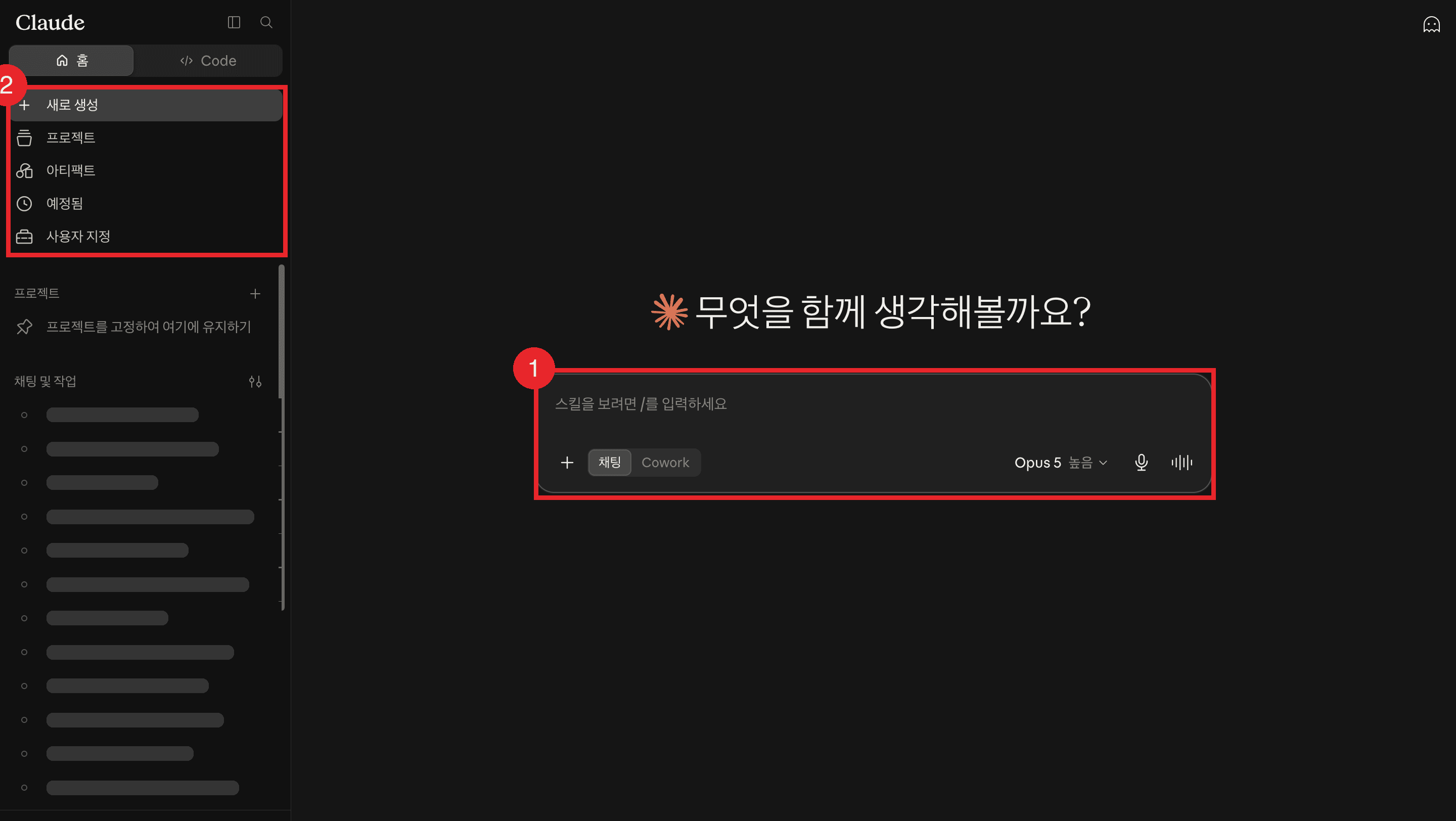
(1) is the chat input box you use every day; (2) marks the sidebar menus this track opens one by one.
I passed over these for a long time myself. I used ChatGPT for quite a while, and whenever opening a new chat meant re-explaining my situation from scratch, that felt like a hassle, so I'd dig through my chat list for an old conversation where I'd asked for something similar and keep working inside it. Scrolling back through months-old threads became part of my routine. On ChatGPT I'd used GPTs to pre-register the things I did over and over, but when I switched to Claude I assumed there was no equivalent spot and just used plain chat. The menu built to remove exactly that hassle had been sitting in the sidebar the whole time. I'd simply never clicked it.
In the previous track, you picked a tool, uploaded a file, even swapped models. This track opens the menus on the left you've been glancing past ever since. Today's the first lesson, so we start with the screen itself: what each menu is called, where it lives, and what it does, one line at a time, then land on the order to learn them in. One thing worth knowing upfront: the sidebar is a spot all three companies reshuffle every few months. ChatGPT's Canvas, for one, dropped out of GPT-5.5 this past May. So read for what each spot stands in for rather than memorizing the label.
Top to Bottom: From New Chat to Your Chat List
Let's walk down Claude's screen from top to bottom. It helps most if you have Claude open right now and follow along item by item.
- New chat: the button you press every day. Every new conversation starts here. You already know this one well.
- Projects: a room for material and instructions. Upload the same files and repeat the same context every time you open a new chat, and Projects gets rid of that. It's exactly what I used to do by hand, digging through old threads. Covered in Lesson 3.
- Artifacts: where whatever Claude builds for you piles up. Documents, tables, even mini apps with buttons you can actually click, anything pulled out into its own window instead of mixed into the chat lands here. Covered in the very next lesson.
- Scheduled: where tasks run automatically, either on a set schedule or on demand. It is paid-plan only, so it does not appear in the free plan's sidebar (checked August 2026). It's paired with Cowork, which is why it sits outside this track. More on Code and Cowork below.
- Customize: a settings bundle covering skills, connectors, plugins, and memory. Connectors, which you'll cover in step 3, live inside here too.
- Your chat list: past conversations. This is the one you already know best, and until now, it and New chat were probably the only two you'd ever touched.
One name is missing from that list. On paid plans, Code isn't in the vertical list at all, it's a tab at the very top, next to Home; on the free plan it shows up inside the list with an Upgrade badge (as of the August 2026 interface). It hands off an entire coding job, and it's outside this track too, so we'll touch on it briefly below.
ChatGPT runs on the same skeleton. Projects sits in its sidebar under the same name, doing the same job of holding material and instructions. There's nothing that maps directly to Artifacts in the sidebar, that role shows up as writing blocks and code blocks inside a reply instead. Whichever one you use, you can follow this track exactly the same way, and the comparison table below lines up where the names diverge.
Why It's Blank at First: Nothing's There Till You Make It
Clicked one of these once and closed it right back out? Fair enough, there's a real reason for that. Most of these are blank the first time you open them. You haven't made anything yet. Since September 16, 2026, anything you make lands in the Artifacts tab on its own, but with nothing made, the list is naturally empty. Projects work the same way. These aren't screens that explain what they do, they're screens that hold what you've already made, so a first-time visitor gets no explanation at all.
So clicking through to a blank screen and backing right out wasn't a mistake, it just hadn't been filled yet. You've already seen where everything is, so now let's group it in a way that's easy to remember. Sort by what each one does instead of by name, and it collapses down to four buckets.
4 Steps to Learning the Web Features
Grab, Organize, Connect, Delegate. This order isn't arbitrary, it's the order in which what you need to prepare and the weight of the judgment call both increase. Let's walk through why each one sits where it does.
Step 1, Grab: Artifacts and Canvas
The first step is Grab because it asks almost nothing of you upfront. Setting up a project means deciding what to upload before you start. Connecting a connector means reading through a permissions screen. Artifacts skips all of that. The only thing worth knowing ahead of time is a single switch in settings. Claude's help center states plainly that Claude stops supporting artifacts if Code execution and file creation is turned off under Settings > Capabilities. That switch defaults to on, so you usually don't need to touch it, but check there first if artifacts refuse to open. Claude's help center also explains that once your content runs past about fifteen lines and would make sense pulled out of the conversation, Claude opens it as an artifact on its own. Keep chatting the way you normally would, and at some point a window just appears on the right. There's nothing to operate here, only something to notice. That's why this step gets the very next lesson.
Step 2, Organize: Projects and Gems
Organize comes second because there's almost nothing new to learn conceptually. You've already done two things in the previous track: uploaded a file into a chat window, and written your own context into custom instructions. A project just makes both of those permanent in one room. Instead of uploading the same file every time, you upload it once to the project. Instead of re-explaining your situation every time, you write it once into the project's instructions. Every conversation you start inside that room references both automatically. The screen is new, but the concept is just a recombination of things you already know. The one thing that puts this a step above Artifacts is that you now have to decide for yourself what belongs in the room. This step gets covered in Lesson 3.
Step 3, Connect: Connectors
The third step is where you need a genuinely new skill for the first time: reading a permissions screen. Through projects, you're only ever uploading copies of files you picked yourself, so a mistake stays contained inside that room. Connectors are different. You're issuing AI a badge that lets it reach into the original files on your Google Drive or Gmail. You need to be able to read exactly what you're authorizing, and know how to revoke it later. What goes up isn't the difficulty of clicking buttons, it's the difficulty of judgment. That's why this step belongs to the next track, not this one.
Step 4, Delegate: Code and Cowork
The last step changes what you're actually reviewing. In the first three steps, you give the instruction and you check the result, every time. Delegation means handing over a goal and letting the process run on its own. Claude's help center describes Cowork as analyzing your request, building a plan, breaking the work into smaller pieces, and running several of them at once when needed. What you review widens from a single reply to an entire workflow. Starting here before you have a feel for what's safe to hand off leaves you with no basis for trusting the outcome. That's why it waits for the CLI track and the advanced material after it.
Some of you will want to skip ahead. My advice is still to start with Grab, for one reason. The first two steps show you the result immediately, and there's nothing to undo if something goes wrong. From Connectors onward, you're granting access to your own accounts, so you need to know how to revoke that access too. It's safer to let how much you trust a tool grow at the same pace as how much responsibility you hand it.
Comparing Sidebars Across the Three Companies (Aug 2026)
These tools do the same job under a different name at every company. That's exactly where search results start to diverge, so let's line them up in a table first.
| What it does | Claude | ChatGPT | Gemini |
|---|---|---|---|
| Grab: results in an editable form | Artifacts, a dedicated window | Writing blocks and code blocks, inline in the reply (formerly Canvas) | Canvas, a dedicated panel |
| Organize: upload material and instructions for reuse | Projects | Projects | Gems, Notebooks |
| Connect: link your own services | Connectors | Apps, under Plugins | Connected Apps |
Only one cell in that table needs unpacking. Gemini splits the Organize slot into two. Gems is your own personalized version of Gemini, built to hold instructions and knowledge files. Notebooks is a space that remembers your sources, your requests, and an ongoing conversation together. Google's help center even titles its Notebooks article "Organize your projects with notebooks in Gemini Apps." Neither one requires a paid plan to create. Notebooks first opened to Google AI plan subscribers on the web in April 2026, and Google's current help center listing no longer mentions a plan requirement at all. Where Gems only requires you to be 13 or older, Notebooks carries three conditions: you must be 18 or older, use a personal Google account, and have Gemini Notebook connected to the Gemini app. That connection happens automatically in most regions, but users in the European Economic Area have to set it up manually, and the rollout is still gradual enough that some accounts don't see it yet.
Three things worth knowing before you read the table too literally.
First, a different name doesn't mean a different feature. Artifacts and Canvas occupy the same slot. Learn Artifacts on Claude, then move to Gemini, and the only thing left to learn is how to open it.
Second, not everything in the table lives in the sidebar. Gemini's Canvas isn't a sidebar item at all, you switch it on from the menu that opens when you click "add files" below the input box. ChatGPT's writing blocks aren't a sidebar item either, they appear directly inside a reply. That's why people report searching the sidebar and coming up empty. Read the left column of the table as a grouping by function, not by screen location.
Third, this table will go stale. ChatGPT's Canvas is proof. OpenAI's release notes state that as of May 28, 2026, GPT-5.5 Instant and GPT-5.5 Thinking no longer offer Canvas, with writing and coding support moved into writing blocks and code blocks inside the reply itself. Paid users can still use Canvas, but only temporarily, until the legacy models it depended on are retired. When autocomplete suggests "chatgpt canvas gone," that's not a rumor. It actually happened.
Claude Code vs. Cowork: What You Hand Off
As covered above, Code isn't in the vertical list at all, it's a tab of its own at the very top, next to Home (as of August 2026). Cowork doesn't get its own sidebar slot either, you pick it right next to Chat in the message box. Some reassurance first: you don't need to open either of these today. All you need right now is to know where they are and what they do.
Code links to claude.ai/code. Its full name is Claude Code on the web. You pick a code repository you've pushed to GitHub, describe what you want done, and Claude pulls it down and works on it inside an isolated remote environment that Anthropic manages. It runs without anyone watching, and hands back changes for you to review when it's done. According to the official docs, this is a research preview for Pro, Max, and Team plans and qualifying Enterprise users, and it isn't open to the free plan (as of August 2026). If you don't have a repository to point it at, clicking through gets you nowhere past the first screen.
Cowork is for handing off work that isn't code. Claude's help center describes it as Claude carrying out complex, multi-step tasks on your behalf: breaking down the request, building a plan, splitting the work into pieces, and running several of them in parallel when it makes sense. Think file cleanup, pulling research together, or building out a spreadsheet with formulas or a slide deck. It's paid-plan only. On the web that means Pro, Max, or Team, and Enterprise only if an admin has turned it on. Chat and Cowork share the same screen, so you start a Cowork session by selecting it from the message box. Scheduled, the sidebar item you saw earlier, is where recurring and on-demand Cowork tasks get managed once you're running them.
The difference comes down to what you're handing off. Code takes a code repository, Cowork takes files and documents. Both belong to Step 4, Delegate, and both sit outside this track. Code gets covered in the CLI track, and Cowork comes later still. What matters right now is that a locked sidebar item, or a tab you haven't clicked, doesn't mean you're missing out on something. Its turn just hasn't come yet.
What You'll Build: A Monthly Client Content Report
A map alone doesn't leave you with anything to show for it. This track works toward one concrete deliverable: a content report you send a client every month. You don't need to be a consultant for this to apply. Any document you rebuild in the same format every period fits here, whether that's a weekly team report or a monthly sales summary for your store. The structure is the same either way.
- Lesson 2: Grab the report skeleton as an artifact. Instead of disappearing into a chat scroll, you end up with one editable document. (Step 1, Grab)
- Lesson 3: Move that skeleton into a project. Upload your client's material and your writing rules to the room once, and next month you start with a single line: "Draft this month's report." (Step 2, Organize)
- Lesson 4: A checklist to confirm what you've built so far and flag the common mistakes.
- Next track: Eliminate re-uploading material every month altogether. Connect the source directly, and you stop carrying copies around. (Step 3, Connect)
That old habit of mine, digging through old conversations and scrolling back to keep working inside them, comes back to me now. Looking back, that was me doing by hand exactly what Projects was built to do. The menu had been sitting there in the sidebar the whole time. This time, it's my turn to click it.
- Sidebar features fall into four steps by function: Grab, Organize, Connect, Delegate, in that order.
- Artifacts is the window that catches your results, Projects is the room that holds your material. One hands things out, the other stockpiles them.
- Grab (Artifacts, Canvas) comes first because it asks almost nothing of you. Keep Cloud code execution and file creation turned on in settings, and it appears automatically mid-conversation whenever your content qualifies.
- Organize (Projects, Gems) comes second because it's just a recombination of file uploads and custom instructions, so there's little new to learn.
- Connect (Connectors) is where reading a permissions screen becomes necessary, so it's held for the next track.
- Delegate (Code, Cowork) hands off the entire process, so it belongs to the CLI track and the advanced material beyond it. Code lives in its own tab next to Home, not the sidebar list; for today, just know where it lives.
- ChatGPT's Canvas stopped shipping with GPT-5.5 on May 28, 2026, replaced by writing blocks and code blocks inside the reply.
Frequently asked questions
What's the difference between Claude Artifacts and Projects?
Artifacts is for receiving a result. Projects is for stockpiling material. Artifacts opens a document, piece of code, table, or other output Claude made in a dedicated window separate from the chat. Projects lets you upload material and instructions into one workspace that every conversation started there automatically references. Think of an artifact as the output of a single conversation, and a project as the container that holds many conversations together. Learn Artifacts first.
What's the difference between Claude Code and Cowork?
It comes down to what you hand off. Code, or Claude Code on the web, takes a GitHub repository: pick a repo, describe the task, and Claude works inside an isolated remote environment that Anthropic manages, producing changes for you to review. It lives in its own tab next to Home, not in the vertical sidebar list. Cowork takes work that isn't code: file cleanup, pulling research together, building spreadsheets or slide decks with multiple steps, planned and carried out on its own, with recurring or on-demand runs managed from the sidebar's Scheduled item. Neither is available on the free plan (as of August 2026).
Did ChatGPT's Canvas disappear?
Yes. According to OpenAI's release notes, GPT-5.5 Instant and GPT-5.5 Thinking stopped offering Canvas as of May 28, 2026. Writing and coding support moved into writing blocks and code blocks inside the reply instead. Paid users can keep using Canvas, but only temporarily, until the legacy models it ran on are retired.
Does Gemini have anything like Projects?
Nothing is literally named Projects, but the role splits into two. Gems is a customized version of Gemini that holds instructions and knowledge files. Notebooks is a space that remembers your sources, your requests, and an ongoing conversation together, and Google's own help article about it is titled around organizing your projects. Neither requires a paid plan to create. Notebooks first opened to Google AI plan subscribers on the web in April 2026, and Google's current help center listing no longer requires a plan at all. It does carry three other conditions instead: you need to be 18 or older, use a personal Google account, and have Gemini Notebook connected to the Gemini app.
Can I use these features on a free plan?
Grab and Organize, mostly yes. Claude Artifacts works on every plan including Free, as long as Cloud code execution and file creation is turned on under Settings > Capabilities. Free Claude accounts can create up to 5 projects. ChatGPT Projects is available on every subscription type including Free, though the file-upload limit per project varies by plan, with Free capped at 5. Delegate, meaning Claude Code and Cowork, requires a paid plan.
Sources (16)Expand to see all sources
- Claude Help Center, "What are artifacts and how do I use them?": defines artifacts, the roughly-15-line auto-generation threshold, availability on every plan including Free, the requirement to enable Code execution and file creation under Settings > Capabilities, and that sidebar collection requires publishing (checked 2026-08-21)
- Claude Help Center, "Create and edit files with Claude": Cloud code execution and file creation is on by default on Free, Pro, and Max (checked 2026-08-21)
- Claude Help Center, "What are Projects?": defines projects, the knowledge base and project instructions, the free-plan limit of 5 and paid expansion (checked 2026-08-21)
- Claude Help Center, "Use connectors to extend Claude's capabilities": how connectors reach external apps and services to pull in data, and how they inherit your existing user permissions on the connected service (checked 2026-08-21)
- Claude Code Docs, "Claude Code on the web": the claude.ai/code entry point, GitHub-repository-based remote execution, eligible plans, and research-preview status (checked 2026-08-21)
- Claude Help Center, "Get started with Claude Cowork": defines Cowork, how it plans and breaks down work, the paid-plan requirement covering Pro, Max, and Team on web (Enterprise only if an admin enables it), and switching to it from the message box that it shares with Chat (checked 2026-08-21)
- Claude Help Center, "Schedule recurring tasks in Claude Cowork": recurring and on-demand tasks are managed from the sidebar's Scheduled item, Cowork paid plans only (Pro, Max, Team, Enterprise) (checked 2026-08-23)
- OpenAI Help Center, "ChatGPT Release Notes": Canvas discontinued in GPT-5.5 as of May 28, 2026, replaced by writing blocks and code blocks, temporary continued access on legacy models (checked 2026-08-21)
- OpenAI Help Center, "Projects in ChatGPT": defines projects, the sidebar creation path, files and project instructions, availability on every plan including Free and the file limits (checked 2026-08-21)
- Google Gemini Help, "Using Gems in the Gemini app": the path to open Gems, how requests and knowledge files are structured, the personal-Google-account and 13-plus requirements (checked 2026-08-21)
- Google Gemini Help, "Create docs, apps, and more with Canvas": the path to turn on Canvas from add files below the input box, how the Canvas panel is structured, and the kinds of output you can create (checked 2026-08-21)
- Google Gemini Help, "Connect Google Workspace apps to the Gemini app": external service connections are called Connected Apps, managed from the Connected Apps settings (checked 2026-08-21)
- Google Gemini Help, "Organize your projects with notebooks in Gemini Apps": defines Notebooks, how sources and requests are structured, the sidebar path, the three requirements of being 18-plus, a personal Google account, and Gemini Notebook connected (no plan requirement), manual connection in the EEA, and the gradual rollout (checked 2026-08-21)
- Google Blog, "Notebooks in the Gemini app": announces Notebooks, initial availability (Google AI Ultra, Pro, Plus on web) and plans to expand to free users (published 2026-04-08, checked 2026-08-21)
- OpenAI Help Center, "Working with writing blocks and code blocks in ChatGPT": how writing blocks and code blocks behave inline in a reply, and the full-screen editing view (checked 2026-08-21)
- OpenAI Help Center, "Apps in ChatGPT": the July 9, 2026 migration of the plugins directory into the apps directory, with Apps remaining the entity you connect (checked 2026-08-21)