How to Use Claude Artifacts and ChatGPT Writing Blocks: Turning Chats into Documents, Tables, and Mini Apps
Whatever a chat-based AI makes for you comes out mixed into the flow of the conversation by default. That's why all three companies keep a separate place for it, pulled out of the chat entirely. Claude does this with Artifacts; ChatGPT does it with writing blocks and code blocks inside a reply. Documents, tables, diagrams, even mini apps with buttons you can actually click, all land in a dedicated spot next to the chat. The conversation keeps flowing on its own, and all you touch is the result sitting in that spot.
"Where did that report draft Claude gave me yesterday go?" You've probably scrolled back through a long conversation hunting for a result you know you were given. In Claude, the report draft is buried somewhere up the scroll; in ChatGPT, you've lost count of how many times you've asked for the same answer to be rebuilt from scratch.
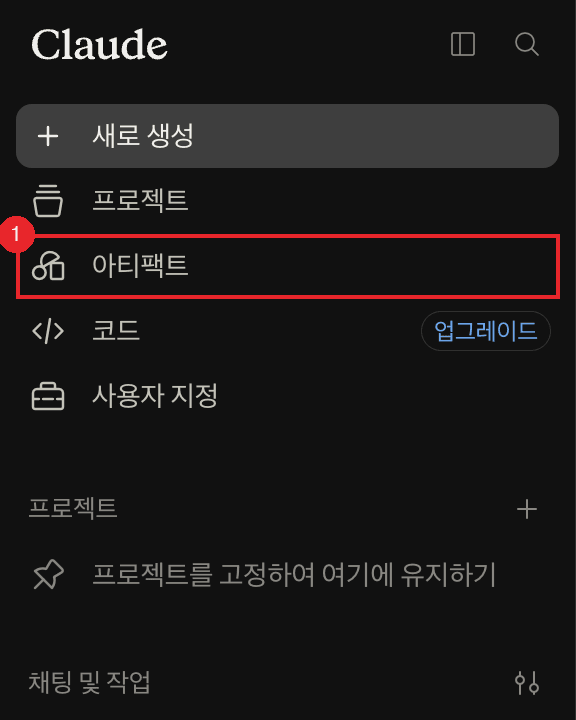
The last lesson mapped out Claude's and ChatGPT's features top to bottom and landed on a four-step learning order. Today it's time to actually open Step 1, Grab, the one that asks the least of you upfront. If you're here just to find out what Artifacts is, or why ChatGPT's Canvas seems to have vanished, this lesson alone will answer that. All three services are actively reworking this space, so wherever something is likely to change, I'll note the date alongside it.
- Artifacts / Writing blocks and code blocks
Artifacts is Claude's feature for pulling whatever it makes for you out of the conversation and into a dedicated window. ChatGPT hands the same job to writing blocks and code blocks. Both services skip leaving the content loose in the chat once it runs past about 15 lines and is worth reopening and editing later. Available on Claude's Free plan and ChatGPT's free tier alike (as of August 2026).
What Exactly Is an Artifact: The 15-Line Bar
It's the same logic as attaching a contract as a file instead of pasting the whole thing into the body of an email reply. The body keeps flowing as a conversation; the attachment is a separate document you keep editing. That's exactly what made plain chat frustrating: once even the thing you meant to attach got typed straight into the body, the next message buried the last one, and you lost track of where anything went.
So what decides whether something gets pulled out or just gets talked through in Claude? The official help center lists four criteria.
- Is it self-contained content that usually runs past 15 lines?
- Is it worth editing or rewriting outside the conversation?
- Does it stand on its own without surrounding explanation?
- Is it something you'd want to find again later?
Clear those bars, and an artifact opens. The official docs name seven representative types: documents, code snippets, single-page websites, images, diagrams and flowcharts, dashboards, and small interactive tools.
That last type is what people usually mean by a mini app: a small web program where buttons and input fields actually work. You don't need to know how to code to order one up. Just ask, and you can get something like a budget calculator that updates its output as you type in numbers.
One thing worth flagging: tables aren't on that list by themselves. So instead of just saying "put this in a table," ask for a document with a table inside it, something like "write this up as a report, with the performance numbers as a table." What you're really doing is requesting a Markdown document and asking it to include a table.
If Artifacts won't open, check settings first. Claude's official docs state plainly that artifacts stop working if Cloud code execution and file creation is turned off. It's usually on, but someone could have switched it off. On Free, Pro, and Max it lives under Settings > Capabilities; on Team and Enterprise an owner controls the same item under Organization settings > Capabilities.
ChatGPT hasn't published its own criteria, but the behavior tracks closely. Ask for something long and worth revisiting, and instead of spilling it into the chat, ChatGPT puts it in a writing block or code block. Why the name Canvas isn't the one you'll find is its own story, covered a bit further down.
How Are Artifacts and Projects Different
Cut to the point: one hands you a result, the other stockpiles material.
- Artifacts / Projects
Artifacts opens whatever Claude makes for you in a dedicated window, separate from the chat. Projects lets you upload material and instructions into one workspace, and every conversation started there references them automatically. Artifacts is the side that hands things out; Projects is the side that stockpiles them.
Take today's report skeleton as the example. The artifact is the skeleton document itself. The project is the room where you'd upload last month's report and your brand guide, the material you used to build that skeleton. The two aren't competing, they're a pair with an order to them: converse inside a room, and the output comes out as an artifact. The next lesson covers Projects in full, so for now, just remember this one paragraph.
[Hands-On] Grabbing a Monthly Client Report Skeleton
Time to grab one for real. Over this track, you're building toward a monthly content report you send a consulting client. Today's job is to grab that report's skeleton, once with each tool if you use both, and see how it lands. Once the skeleton exists as an artifact or a writing block, next month all you swap out are the numbers. The whole point of this exercise is that you never start from a blank screen again. Follow along with whichever tool you actually use.
Grabbing it as an Artifact in Claude
Open a new chat in Claude and give it the instruction below. Structuring it around background, request, and format is exactly the approach covered in how to hand AI a task.
I consult on content marketing for a small cosmetics brand. I need a monthly content report to send the client every month. (background)
Build the skeleton of that report as a document. (request)
Sections in this order: this month's summary, performance by channel, the three best-performing pieces of content with reasons why, and next month's recommendations. For performance by channel, use a table with columns for channel, number of posts, views, engagement rate, and change from last month. I'll fill in the numbers myself, so just leave the cells blank and hold the space. (format)
This is a self-contained document well past 15 lines, so it clears the bar. Instead of a long reply sprawling through the chat, a window opens on the right with the report skeleton inside it.
One variable worth knowing up front: with the Cloud code execution and file creation setting on, which is the default, the same request often comes back as a downloadable Word file (DOCX) instead of an artifact window (verified August 2026, reproduced three times in a row on a free account). Files have their uses, but today's exercise is about viewing and revising on screen, and that calls for an artifact. Add one line to your request, "make it an artifact, not a file," and you'll get the artifact.
Once you've got it, try editing it right away. There are two ways to revise an artifact.
The first is telling Claude in chat. Just type something like this into the conversation.
Add a sessions column to the performance-by-channel table, and trim next month's recommendations down to three.
Instead of creating another document, Claude updates the open artifact in place. The version selector lets you jump between the old version and the new one, so if you don't like the change, just revert. Feel free to experiment without worrying about it.
The second way is pointing directly at the spot you want changed. On a Markdown document artifact, drag-select the sentence you want to fix, then click "Edit with Claude" and type your request. Claude edits only the highlighted spot. You don't have to spell out which paragraph you mean in a long chat message. This is especially handy on a multi-section document like a report.
You can also keep multiple artifacts open in one conversation, say, the full report and a separate one-page summary. Pick which one you mean from the chat controls in the top right so Claude knows which artifact to edit.
Grabbing it as a Writing Block in ChatGPT
Now try the exact same request in ChatGPT. Open a new conversation and paste in the same three-part prompt above, background, request, and format, unchanged. It's a multi-section, self-contained document, so instead of spilling into the chat, a writing block appears.
For a long document like this report, click the expand icon in the top right to open it in the full-screen editor. OpenAI's official help center explains that full-screen view was built specifically for document work, essays, reports, blog posts, memos. Longer documents get a table of contents. Editing works much like Claude: ask again in chat, and it updates in place.
To keep using this document next month, save it. The official help center explains that supported documents can be saved to your Library, where you can find and reopen or edit them later. Select multiple and click download to get them as files too. The difference from Claude is where things end up: Claude now files every new artifact into the Artifacts tab by itself, while ChatGPT asks you to save to the Library.
I mostly used this window for documents and HTML. I'd ask for a change on the left, and the result on the right updated on the spot. Watching the change happen while I refined it felt intuitive, and at that stage nothing else came close.
What's funny is I rarely called up an artifact on purpose. I wasn't trying to build HTML, I'd just be explaining something, and Claude would open a window and start drawing it out on its own. More than once I had to say, "no, not that, I'm not making a landing page." The criteria covered above are Claude's own judgment call, so it doesn't always match what I actually wanted. When that happens, it's faster to just tell it in one line what I want than to close the window.
Did ChatGPT's Canvas Disappear? Writing Blocks Took Over
Type "chatgpt canvas" into a search bar and autocomplete finishes it with "gone" almost immediately. Short answer: on the current models, it really is gone.
OpenAI announced that Canvas stopped working on GPT-5.5 Instant and GPT-5.5 Thinking as of May 28, 2026. Writing and coding support moved into writing blocks and code blocks inside the chat reply itself, exactly what you just used in the exercise above. Instead of opening a separate window, an editable block gets embedded directly in the answer.
That gap didn't stay empty for long. On June 8, 2026, writing blocks on the web were extended to handle long-form content. The full-screen editor, table of contents, library saving, and download you just used in the exercise all arrived with that update. Code blocks got their upgrades earlier, back in February 2026: inline editing, mini-app previews, and split-screen review, followed by the ability to export flowcharts and diagrams as images.
So is Canvas gone for good? OpenAI's announcement said paid users could keep using Canvas on legacy models for a limited time. The catch is that those legacy models are being retired one by one. The same announcement pinned retirement dates on both: GPT-4.5 on June 27, 2026, and OpenAI o3 on August 26, 2026. Both dates have passed, so that "limited time" is effectively over. For what it's worth, o3-pro never supported Canvas to begin with, according to the release notes, so it's not a fallback either. Even the URL that used to host a dedicated Canvas help article now redirects to the model release notes.
So here's where that leaves you. If you've been hunting for a Canvas button on chatgpt.com, stop looking. For long writing, expand the writing block inside a reply to full screen, edit it there, and save it to your library. For code and diagrams, work inside the code block instead. The name and the shape changed, but everything you used to do, you can still do.
What Artifacts Can and Can't Do
Knowing the boundary saves you wasted effort. Here's what's possible, starting with the basics, using Claude's Artifacts as the reference.
| What works | Description |
|---|---|
| Documents and tables | Opens as a Markdown or plain-text document. Ask for tables inside that document. |
| Diagrams and flowcharts | Process flows, org charts, and similar visuals |
| SVG images | Icons or simple shapes |
| Single-page website | A one-page HTML landing or intro page |
| Mini apps | Interactive tools like calculators, quizzes, and checklists |
| Mini apps with AI built in | Embeds Claude's response capability inside the app itself. Runs on each user's own usage, so it doesn't cost the person who built it |
| External service connections | On Pro and above, web and desktop, connects to tools like Asana, Google Calendar, and Slack |
| Data storage | On Pro and above, web and desktop, apps can persist up to 20MB of data per artifact |
What doesn't work is just as clear-cut, and the expectation that trips people up most is slide decks.
Slides got their own place in the September 16, 2026 overhaul. Artifacts had no slide type before, which sent you to the file creation feature for a deck. Now a Slides template sits inside Artifacts: present a deck straight from Claude, or export it to PowerPoint or PDF. The Docs template exports to Word, PDF, Markdown, and Google Docs.
The templates are a paid-plan beta, though. You can't build slides on the Free plan yet, and on Enterprise an owner has to turn each template on. If you're on Free and need a PPT, the file creation feature below is your answer.
That file creation feature is still there, sitting next to Artifacts. It generates real, downloadable Excel (.xlsx), PowerPoint (.pptx), Word (.docx), and PDF files, saves straight to Google Drive, and handles up to 30MB per file. Both get switched on by the same settings item, Cloud code execution and file creation, which is exactly why they get confused. The rule of thumb: things you'll keep refining and hand over as a link go through Artifacts. Files you're going to attach to an email come from file creation instead.
Mini apps that store data behave differently on either side of September 16, 2026. Anything made after that date stores data without being published. Anything made in a chat before it is a legacy artifact, where storage only starts working once you publish, so a save that fails while you're building is the legacy behavior showing. Either way, storage is text only, up to 20MB per artifact. Images and files won't go in.
If you're not sure whether something should be an artifact, one question settles it: will you keep editing this, or read it once and move on? Editing means artifact, one-time-read means chat. Ask for a one-line phrase as an artifact and all you get is a window opening and closing for no reason.
Publish and Share: Handing It Off With One Link
Once your report skeleton is polished, it's time to show the client. Claude and ChatGPT get you there differently.
Claude uses Publish to generate a link. The terminology splits by plan here. Free, Pro, and Max call it Publish, and anyone with the link can open it. Team and Enterprise call it Share, and only people logged in within the same organization can view it. In other words, a work account can't be exposed to the outside world at all.
Publishing takes four steps.
- Open the artifact you want to publish.
- Confirm you're looking at the right version.
- Click Publish.
- Copy the link that appears and send it along.
Don't skip past step two. Publishing sends out exactly whatever version is open right now. If you happened to be looking at an older version through the version selector when you clicked Publish, that's the version that goes out.
The September 16 line runs through here too. Anything you make now is saved to the Artifacts tab in your sidebar on its own, findable from any conversation, so there's no need to publish just to keep it. Legacy artifacts work the other way: they only join that list once published. So "I definitely made this, why isn't it in the list" now means you made it before September 16 and never published it.
Whether your recipient needs an account splits the same way. Anything you make now requires the person opening the link to sign in to Claude. The one case that opens without an account is a legacy artifact published from a chat, and even there, anything using Claude asks them to sign up. Embed codes are also legacy-only: after publishing one, you can grab the code and list the allowed domains yourself.
Two things you should know going in.
Unpublish a legacy artifact, and you can't republish that same one. This is a hard constraint stated in the official docs. Making it public again means creating a new artifact from scratch, and whatever data was stored in the old one gets permanently deleted along with it. This button isn't for taking something down temporarily and putting it back up later. New artifacts aren't bound by this, since you can change who has access at any point.
Share within an organization, and any files you attached to that conversation open up along with it. This matters most if you built the artifact from a client's raw data. Before sharing, take a moment to check exactly what you uploaded into that conversation.
If sharing a link isn't practical for your situation, you can also copy the content or download it as a file from the bottom right of the artifact window.
ChatGPT saves to your Library and downloads. The writing block you built in the exercise above can be saved to your Library for later. Select multiple and click download to get them as files too. The sharing methods ChatGPT's official help center documents are library saving, downloading, and a read-only link for supported code blocks. There's no documented way to put a writing block itself behind a public link the way Claude's Publish does. If you need to show a report to a client without an account, downloading the file and sending it is your surest bet right now.
What About Gemini: It Builds Slides Too
Gemini tells a different story. Canvas is still around under that exact name, and every Gemini user can use it (as of August 2026). Google AI Pro and Ultra subscribers get it paired with Gemini 3, the top-tier model, and a million-token context window.
The reason Gemini's Canvas is worth a look is slide decks. Google's official help center lists four things you can build with Canvas: documents, apps, slides, and code. Slides, the one thing missing from Claude's Artifacts list, is right here.
Getting started takes two steps. First, at gemini.google.com, click "add files" below the input box and turn on Canvas. Second, spell out the format you want directly in your prompt. Google's own example is "create a slide presentation about [topic]." Turning on the Canvas button alone won't get you slides, so don't skip that line. Once it's built, open Share & export in the top right of the Canvas panel on desktop. Click Export to Slides there to send it to Google Slides. Exporting as a PDF works too.
To directly answer a common search, "save gemini canvas as ppt": there's no path to a direct .pptx download in Gemini's Canvas help documentation. The official docs stop at exporting to Google Slides. If you actually need a PowerPoint file, the path is exporting to Google Slides first, then downloading it in a different format from there.
Three catches worth knowing ahead of time.
- Some localized help pages lag behind the English version. The Korean-language help page's export menu, for instance, only lists Export to Docs, Copy content, and Export to Colab, missing Export to Slides entirely. If you want to confirm the Slides functionality, check the English-language help page.
- Mobile has a narrower feature set. The Android help page's export menu doesn't include Slides at all, and text styling and formatting edits are desktop-web only.
- Under-18 accounts can't use the conversion tools. The Create menu that turns a Canvas document into a slideshow, quiz, infographic, webpage, or audio overview is restricted to accounts 18 and older. Making a copy of someone else's shared Canvas to keep editing it falls under the same age restriction.
Sharing works similarly to Claude. Generate a link from Share & export, and whoever receives it can copy it and keep editing. One catch: a shared Canvas only opens in Gemini on the web. Send that link to someone on the mobile app, and it won't open.
- Claude pulls a result out of the conversation with Artifacts; ChatGPT does the same with writing blocks and code blocks. Both kick in once content runs past about 15 lines and is worth revisiting.
- Artifacts hands out a result, Projects stockpiles the material behind it. They're not competing, they're a pair: converse inside a project room, and the result comes out as an artifact.
- The official docs list seven representative artifact types: documents, code, single-page websites, images, diagrams and flowcharts, dashboards, and small interactive tools. Tables aren't on that list, so ask for a document with a table inside it.
- There are two ways to edit in Claude: tell it in chat, or drag-select the sentence you want changed and use "Edit with Claude" to fix just that spot. ChatGPT's writing blocks update the same way, just ask again in chat.
- Anything you make now lands in the Artifacts tab by itself. Only legacy artifacts, made before September 16, 2026, need publishing to join the list, and those can't be republished once unpublished. ChatGPT does the equivalent through Library saving and downloads, with no documented public link for a writing block itself.
- Decks come from the Slides template inside Artifacts on paid plans and export to PowerPoint; on Free, the file creation feature does it. ChatGPT's Canvas dropped out of the current models in May 2026 in favor of writing blocks and code blocks. Gemini's Canvas builds slides and exports them to Google Slides.
Frequently asked questions
What is Claude Artifacts?
It's a feature that pulls whatever Claude makes for you out of the conversation and into a dedicated window to the right of the chat. It kicks in once content runs past about 15 lines and is self-contained enough to edit or reuse outside the conversation. The official docs list seven representative types: documents, code, single-page websites, images, diagrams and flowcharts, dashboards, and small interactive tools. It's available on the Free plan too.
Why won't the artifact window open?
Check settings first. Claude won't support artifacts if Cloud code execution and file creation is turned off. On Free, Pro, and Max you'll find it under Settings > Capabilities; on Team and Enterprise an owner controls the same item under Organization settings > Capabilities. If the setting is on and it's still not opening, your request was probably too short to clear the threshold. Try asking for it as a document instead.
Can Claude Artifacts make a PPT?
Yes. The September 16, 2026 overhaul brought a Slides template into Artifacts. You can present the deck from inside Claude and export it to PowerPoint or PDF. The templates are a paid-plan beta, though, so Free plans can't build slides yet and Enterprise owners have to turn them on. On Free, Claude's file creation feature generates real PowerPoint (.pptx), Excel (.xlsx), Word (.docx), and PDF files, up to 30MB each, and can save straight to Google Drive.
What's the difference between Artifacts and Projects?
Artifacts is a window that holds a single result. Projects is a space that holds the material and instructions used to produce results. You upload documents and write instructions into a project, which makes it useful for repeating conversations in the same context. Projects gets covered in detail in this track's next lesson.
Where did ChatGPT's Canvas go?
As of May 28, 2026, Canvas was removed from GPT-5.5 Instant and GPT-5.5 Thinking. Writing and coding support moved into writing blocks and code blocks inside the chat reply. Paid users were told they could keep using it on legacy models for a limited time, but the same announcement pinned dates on those models too: GPT-4.5 on June 27, 2026, and OpenAI o3 on August 26, 2026. Both have passed. For long writing, use the full-screen editor inside a writing block instead.
Can I share a ChatGPT writing block with a link the way I publish a Claude artifact?
Not according to the official documentation. The methods it names are saving to your Library, downloading the file, and a read-only link for supported code blocks specifically. There's no documented way to expose a writing block itself as a public link the way Claude's Publish does. If you need to hand a report to someone without an account, download it as a file and send that instead.
Sources (12)Expand to see all sources
- Claude Help Center, "What are artifacts and how do I use them?": the September 16, 2026 legacy cutoff, the four criteria for creating an artifact, the roughly-15-line threshold, the seven content types, availability by plan, the Slides, Docs, and Design templates as a paid beta, everything you make being saved to the Artifacts tab, the Cloud code execution and file creation requirement and its path per plan, and 20MB storage that only legacy artifacts gate behind publishing (rechecked 2026-09-25)
- Claude Help Center, Korean edition, "What are artifacts and how do I use them?": the official Korean-language terminology and settings path (rechecked 2026-09-25, article number changed)
- Claude Help Center, "Share artifacts": sharing requires a Claude account and the only exception is a legacy artifact published from a chat, the Publish versus Share and copy link terminology split for legacy artifacts, the three-step publishing process, adding to the sidebar list, embed codes and allowed domains, the no-republishing-after-unpublish rule and permanent deletion of stored data, and attachments becoming visible on org sharing (rechecked 2026-09-25, article title and number changed)
- Claude Help Center, "Create and edit files with Claude": generating and downloading .xlsx, .pptx, .docx, and PDF files, saving to Google Drive, the 30MB-per-file limit, and default availability by plan (checked 2026-08-21)
- Claude Help Center, "What are projects?": defines projects as an independent workspace holding material (project knowledge) and instructions (checked 2026-08-21)
- OpenAI Help Center, "Model Release Notes" (the old Canvas help URL now redirects here): removal of Canvas from GPT-5.5 Instant and Thinking on May 28, 2026, replacement with writing blocks and code blocks, temporary continued access on legacy models, GPT-4.5's retirement on June 27, 2026, OpenAI o3's retirement on August 26, 2026, and o3-pro never supporting Canvas (rechecked 2026-09-19)
- OpenAI Help Center, "ChatGPT Release Notes": full-screen writing blocks and library saving on June 8, 2026, interactive code blocks on February 19, 2026, and image export for code-block visuals on February 27, 2026 (checked 2026-08-21)
- OpenAI Help Center, "Working with writing blocks and code blocks in ChatGPT": writing block definition, the full-screen editor and table of contents, library saving and downloads, the read-only share link for supported code blocks, no documented public link for a writing block itself (checked 2026-08-23)
- Google Gemini Help, "Create docs, apps & more with Canvas" (English, desktop): creating documents, apps, slides, and code, turning on Canvas from add files below the input box, specifying format in the prompt, Export to Slides and slide PDF export under Share & export, the 18-plus restriction on the Create menu and on copying shared Canvases, and shared links opening only at gemini.google.com (checked 2026-08-21)
- The same article's Korean-language edition: the export menu lists only Export to Docs, Copy content, and Export to Colab, with no Export to Slides option (checked 2026-08-21)
- The same article's Android edition: the export menu lists only Export to Docs, Copy content, and Export to Colab, with no Export to Slides option (checked 2026-08-21)
- Google, "Gemini Canvas" product page FAQ: availability for every Gemini user, Gemini 3 and the million-token context window for Google AI Pro and Ultra, and text styling/formatting edits being desktop-web only (checked 2026-08-21)