Setting Up Aside Browser: From Download to Your First Task
AI features are showing up inside browsers more and more. Plenty of browsers can already search on your behalf or summarize a page for you. Aside goes one step further: it logs into the sites you are already signed into and clicks and types there for you. That means it can pull data for you or take over repetitive form filling. For what it can actually do and where it falls short, see my hands-on review of Aside.
It only runs on a Mac, and the browser itself is free. It works by connecting to an AI subscription you already pay for, so there is nothing new to buy. Installing it is no different from any other Mac app, and it takes about three minutes: download the dmg file and drag it into your Applications folder.
The catch is that installing it only gets you a browser window that looks a lot like Chrome. To actually hand it work, you need to connect a model and decide what it is allowed to do. Those two steps matter more than the install itself, but they rarely get much attention in setup guides.
So this guide is built around six steps: download, sign in, import your old browser's data, connect a model, check your permissions, and give it a first task through chat. Each step ends with a line telling you what success looks like.
This is current as of August 23, 2026. Screens and pricing change often, so if something looks off, check the official docs again.
- Aside
Aside is a browser built to hand web work off to AI, available for Mac and Windows. It is built on Chromium, so it looks a lot like Chrome, and it can log into the sites you are already signed into and click and type on your behalf.
What you need: a Mac and an email address
Three things to check before you start.
- macOS 15 or later: this is the official requirement. Click the Apple menu in the top left and choose About This Mac to see your version. This guide covers the Mac. A Windows build shipped on September 14, 2026, and the supported-platforms section of my Aside review covers it. There is still no mobile version
- An email address: you will use it to create your Aside account
- An existing AI subscription (optional): if you already pay for Claude or ChatGPT, you can connect it. If not, you can run on the free usage Aside gives you
Aside itself is free to use. The official pricing page lists a real tier marked "$0/forever." A lot of people assume you have to pay before you can even try it, but that is not the case. If the pricing structure is confusing, I broke it down in a table in the pricing section of my Aside review.
Step 1: Download and drag it into Applications
Go to aside.com/download and the dmg file downloads automatically. If it does not start, click the manual download link in the middle of the page.
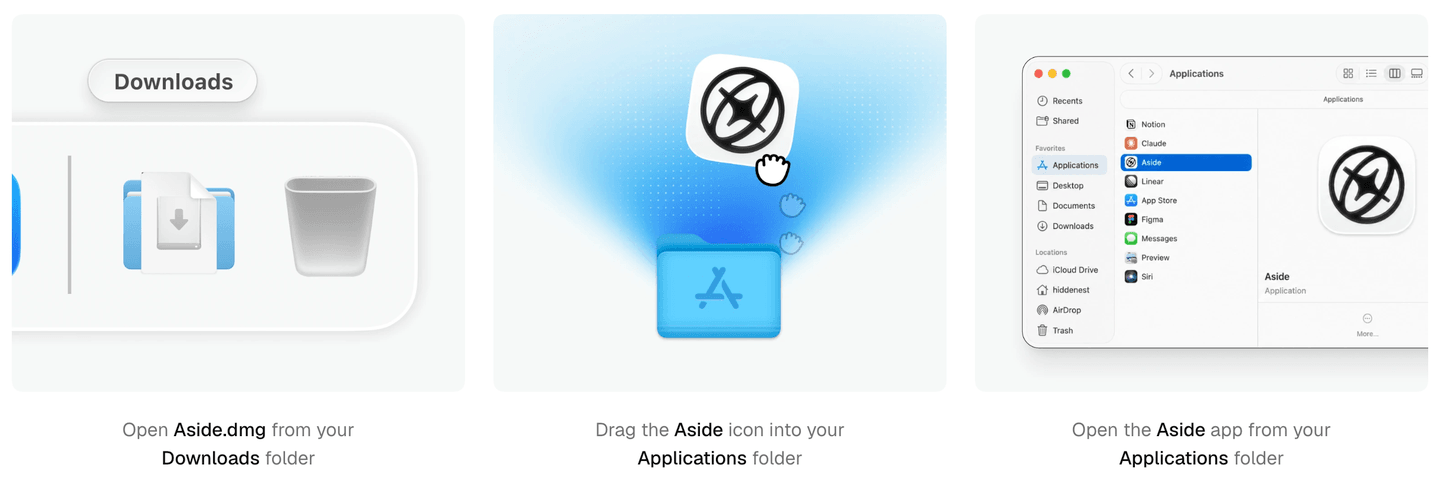
Once it is downloaded, the steps match the image above.
- Double-click
Aside.dmgin your Downloads folder - When the window opens, drag the Aside icon into the Applications folder next to it
- Open Aside from your Applications folder
You know it worked when: the Aside icon shows up in your Applications folder, and launching it opens a browser window that looks a lot like Chrome.
The first time you open it, macOS may warn you that it is an app downloaded from the internet. If you got it from the official site, just click Open.
Step 2: Create an account and sign in
Once the browser opens, it will walk you through creating an account. Sign up with your email, or log in if you already have one.
You know it worked when: after signing in you land on a new tab page, and you see something like Ask AI next to the address bar.
Step 3: Import your old browser's data
Aside can import data from Chrome or Safari. Three things get imported.
- Browsing history
- Cookies
- Bookmarks
Cookies are the important part. They hold your login state, so importing them means you do not have to sign back into the sites you use often. Since Aside's whole point is working on sites you are already logged into, skipping this step means starting from a blank slate of logins.
If you were using Chrome, click Import on the onboarding screen and pick which profile to bring over if you have more than one. Approve the system access prompt if macOS asks for it.
Safari works differently. In Safari, use File > Export to create a ZIP file, then upload that file into Aside. Aside will not accept anything other than a ZIP.
You know it worked when: the import finishes and your old bookmarks show up in the bookmarks bar.
Step 4: Connect a model
This is the step most install guides skip. It is where you decide which AI actually does the work.
Pick one of three routes.
| Option | Who it is for | How you pay |
|---|---|---|
| Aside's built-in model | People without an AI subscription | Uses the 500 monthly credits the free tier gives you |
| Connect your subscription | People already paying for Claude or ChatGPT | Nothing extra |
| Your own API key | People who already use an API key | That provider bills you directly |
If you already have a subscription, connecting it is the better deal. Your browser use will not add a cent to what you already pay, and it will not touch your Aside credits either. The official docs are explicit that credits are separate from any subscription or API key you connect.
You connect it under Settings > Models > Providers. It works by signing into your Claude Pro or Max, ChatGPT Plus or Pro, or GitHub Copilot subscription, so you never hand your password to Aside directly. Each service's own login window handles the approval.
You know it worked when: the service you connected shows up in the Providers list, tagged as Subscription.
Step 5: Check your permissions
Open this screen at least once before you give Aside its first task. It operates on the web using your own logins, so the riskiest thing you can do is use it without knowing how much you have allowed it to do.
Settings > Agents has three controls.
- Sandbox: whether commands run in an isolated environment
- File permissions: which folders the AI can read or change
- Tool permissions: set per feature to Allow (runs without asking), Ask (checks with you first), or Deny (blocked). When settings conflict, Deny wins
There is also a separate permission you set per task. When you start a new task, you pick one of three modes.
| Mode | What it can do |
|---|---|
Read only | Reads only. Will not change your files |
Guard | Works inside folders you have allowed, and asks before touching anything else |
Full access | Can read and write anywhere on your computer |
New tasks default to Guard, and it is worth leaving it there when you are starting out. Full access widens what files it can touch, not whether it can see your saved passwords. Password values themselves are never handed to the AI in any mode; logging in happens through autofill only.
You know it worked when: you can see items set to Ask under Tool permissions, and the new task screen shows Guard selected by default.
Step 6: Give it one sentence to start
Now try giving it something to do. Press Cmd+E to open the input box.
I would make your first task read-only. The point is to watch how the permission prompts actually show up and where it stops to ask you something.
Make a table of the prices for everything in my cart. Don't buy anything.Three things make your instructions work better: which site, what you want back, and what it should not do. That last one matters most. Put phrases like "don't buy," "don't send," or "don't delete" in the sentence and it will stop right there.
If a task starts going sideways, you have two ways to fix it: Steer to redirect what it is doing right now, or Queue to line up an instruction for after the current step finishes.
You know it worked when: the task screen fills in step by step, and it pauses to ask for approval at any point that needs a login.
What breaks after you switch: Netflix and password managers
Switching browsers trips up a few things that have nothing to do with installation itself. Here are two that show up often in the official troubleshooting docs.
Netflix or Prime Video will not play. You will either see an unsupported browser message or nothing plays at all. The component that handles copy-protected video has not downloaded yet. Type aside://components into the address bar to fix it.
One thing worth knowing here, confirmed by opening it myself: the address bar actually switches to chrome://components. That is not a mistake. Aside is built on Chromium, so it keeps Chromium's internal page addresses even under its own name. In the list, find Widevine Content Decryption Module, click Check for update next to it, and once the status says up to date, refresh the tab.
1Password will not connect. Even though Aside is Chromium-based, 1Password does not recognize it as one. In the 1Password app, go to Settings > Browser > Connect to Other Browser and add Aside, then copy the file below by hand.
cp ~/Library/Application\ Support/Google/Chrome/NativeMessagingHosts/com.1password.1password.json \
~/Library/Application\ Support/Aside/NativeMessagingHosts/com.1password.1password.jsonThe Apple Passwords extension will not work. Type "Check the connection status using the Apple Passwords skill" into Aside's input box. Once that check finishes, reopen the extension and it connects.
Troubleshooting: install and first launch
| Symptom | What to check |
|---|---|
| Installer will not open | Confirm you are on macOS 15 or later. Earlier versions are not officially supported |
| A task looks stuck | Open the task; it is often waiting on your approval or an answer. Respond and it continues |
| Stuck on a login screen | The site needs two-factor authentication or a passkey. Handle that step yourself, then let the task continue |
| A captcha shows up | Solve it yourself. Do not hand it to the AI |
| Import failed | Fully quit your old browser and try again. Safari only works through a ZIP file |
| Autofill is not showing up | Check Settings > Passwords to confirm autofill is on and the site is not on the exclusion list |
- On a Mac, Aside needs macOS 15 or later. Download the dmg and drag it into Applications and the install is done. A Windows build shipped separately on September 14, 2026.
- Installing alone is not enough. You need to connect a model and check your permissions before it can actually do anything.
- Aside has a free tier. If you already pay for Claude or ChatGPT, connect it and there is no extra cost.
- When importing your old browser's data, bringing over your cookies means you will not have to sign back into the sites you use often.
- Give it a read-only task first, and put "don't buy" or "don't send" in the sentence to set the line it should not cross.
Frequently asked questions
Does Aside work on Windows?
Yes, since the Windows build shipped on September 14, 2026. The steps in this guide are for the Mac, though. I cover supported platforms in the supported-platforms section of my Aside review, linked above in What you need.
Do I have to pay to use Aside?
No. You can install it and try your first task on the free tier. The credit limits per tier and how to connect a subscription are laid out in a table in the pricing section of the review linked above.
Do I need to delete my existing Chrome?
No. You can keep both installed and use them side by side. Importing your data copies it rather than moving it, so Chrome is left untouched. You can decide later whether to switch your default browser.
If I install it, does my password get handed to the AI?
No, saved password values are never passed to the AI. Logins happen through autofill, and the AI only knows that a login happened, not the password itself. That said, the AI is acting on an account you are already logged into, so it is worth checking your permission settings carefully.
What is a good first task to try?
Start with something read-only. Listing cart prices or summarizing your inbox works well because nothing gets changed. The point of the first task is to watch where it stops and asks for your input.
Sources (6)Expand to see all sources
- Aside official docs, install and initial setup (checked August 23, 2026)
- Aside official docs, agent permissions and per-task permission modes (checked August 23, 2026)
- Aside official docs, three ways to connect a model (checked August 23, 2026)
- Aside official docs, troubleshooting and 1Password setup (checked August 23, 2026)
- Aside official docs, keyboard shortcuts and basic controls (checked August 23, 2026)
- Aside pricing, free and paid tiers (checked August 23, 2026)