Claude vs Cowork vs Claude Code: Which One Do You Actually Need?
Think of someone who goes by a different name depending on the room. Your coworker Priya is "Priya" over lunch, "the PM" in a status meeting, and a stern-looking name tag at the front desk. Same person, the label just depends on what she's doing at that moment. Claude, from Anthropic, works the same way. It's one product, but it goes by a different name depending on whether it's holding a conversation, carrying out a task on your behalf, or working directly inside your files. These aren't separate tools built by different companies. Anthropic split the same Claude into different modes based on what you need it to do.
If you only knew Claude as a chatbot, the moment Claude Code and Claude Cowork show up together in your search results, things stall. You can read that Claude answers you in conversation, Cowork runs tasks directly in a folder and tools you've selected, and Claude Code handles files and commands, and still not know which one to open for your actual work. That's where questions like these come from: "What can I even do with this if I'm not writing code?" "Do I need to learn to code first?" "I already paid for it, but I don't know what to do with it."
This piece walks through three things in order. First, what each of the three actually does, and whether you open it in a web browser, the desktop app, or the terminal. Second, how to pick your first candidate based on whether the job is answered in conversation, handled by moving between screens and services, or repeated across files and commands. Third, what non-developers can realistically hand off, what conditions have to be met first, and how to choose a first task to try before or after you pay. This is current as of August 2026; check the official docs alongside anything here that might have changed since.
⚠️ One thing before we start. On 16 September 2026 Anthropic announced that Cowork and chat are merging into one Claude. It is rolling out to Pro and Max first, and as of 23 September 2026 the sidebar has merged into Chat with Cowork on one side and Code on the other, while the input box still carries a toggle between chat and Cowork. The same announcement says existing chats, projects, connectors, and skills stay where they are. So the distinctions below still hold for what each capability does, but the screen you pick them on may look different depending on your account.
Claude vs Claude Code: the three products and where you open them
There are three names: Claude, Cowork, and Claude Code. And there are three screens where you open them: web browser, desktop app, and terminal. Trying to sort six things into one line is what makes this confusing. Split it into two questions, though, and it gets simple. Decide what you want it to do first, then decide where to open it.
What each one does: Claude, Cowork, Claude Code
Claude answers questions, writes, and organizes material through conversation. A person asks, and Claude answers; that back-and-forth is the whole flow.
Cowork runs tasks directly, using a folder you've picked and tools you've connected. It uses the same agent structure as Claude Code, but doesn't need a terminal.
Claude Code reads and edits the files on your computer, and runs commands. Whether a file counts as "code" matters less than whether it needs to be edited directly.
Broken into a table, the three products look like this.
| Name | What it does | What it mainly touches | Where you open it |
|---|---|---|---|
| Claude | Answers questions, writes, organizes material | Conversation and material | Web browser, desktop app |
| Cowork | Runs tasks in a folder you pick, using tools you've connected | Services, browser, screen, folders | Desktop app |
| Claude Code | Reads and edits files, runs commands | Files and commands on your computer | Desktop app, terminal |
- Claude Code
An agentic coding tool that reads and edits the files on your computer and runs commands. The official docs describe Claude Code as an agentic coding tool. Whether a file counts as code matters less than whether it needs to be edited directly.
Where you open them: web, desktop app, mobile, terminal
Once you've decided what you want done, next comes deciding where to open it. The web browser, desktop app, and terminal aren't a fourth option alongside the first three. They're the screens where you open those three.
- Web browser: go to claude.ai and use it right away, no install. The lightest way to get started.
- Desktop app: a program you install on your computer. It wraps the web view, so what you see inside matches the web. Its sidebar moves between Chat with Cowork and Code. Mac and Windows are supported; Linux is in beta.
- Mobile app: use it on your phone. Good for checking results or sending a quick instruction when you're away from your desk.
- Terminal: a text window where you type commands. Open it when you want to run Claude Code command-first.
Installing it is free, but whether what's inside is free depends on the feature. On the free plan, you get Chat, the conversation feature, only; Cowork and Claude Code fall under paid tiers you need to check. In the desktop app, Chat is the only part that's free to use.
If you searched something like "Claude desktop app vs Claude Code," don't treat the desktop app and Claude Code as two options you pick between. The desktop app is just one of the places where you open Claude Code.
Choosing by scope of work: chat window, browser, your computer
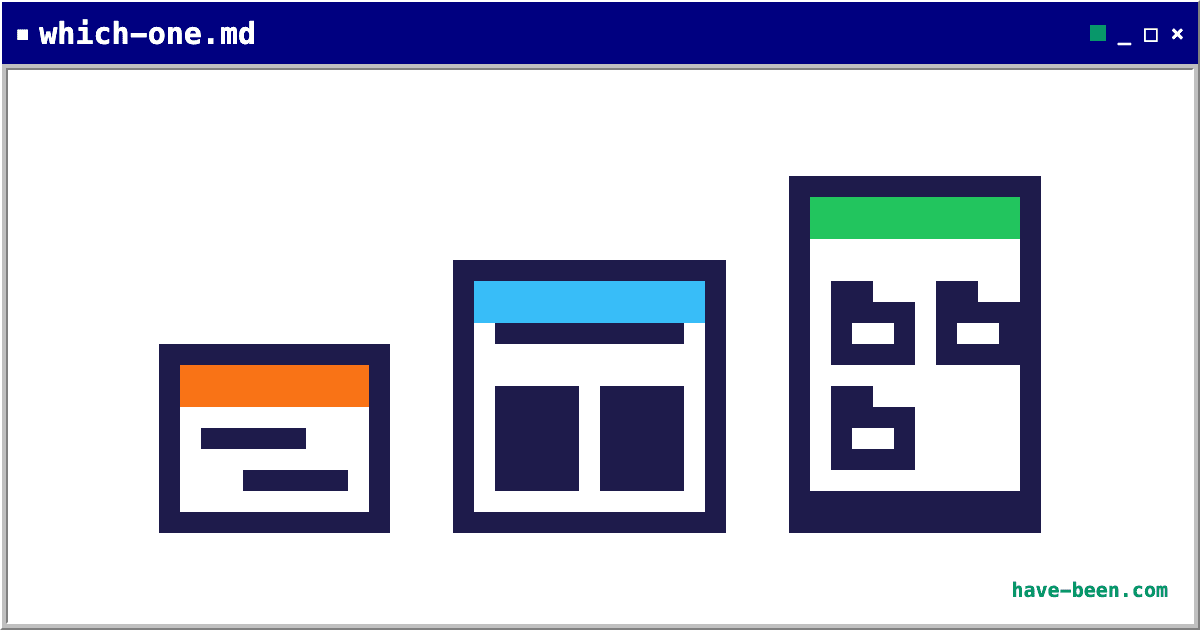
Boil down everything in that diagram to one line and you get scope of work. What differs is how far Claude reaches to get something done.
- Claude stays inside the chat window. You ask, it answers or writes something. Where you paste that and what you click next is on you.
- Cowork steps outside the chat window. It opens a browser to navigate sites, opens the mail and docs you've connected, and clicks around the screen directly when it needs to. It takes over the manual clicking you used to do.
- Claude Code goes inside your computer. It opens a folder, edits files, and runs commands. No screen in between, it works the files directly.
Here's the part that trips people up: both Cowork and Claude Code touch your computer. Cowork also works directly in a folder you choose. The official product page describes it as working in a folder and with tools you've selected. So the idea that "only Claude Code can handle files" isn't accurate anymore.
I said "isn't accurate anymore" for a reason. Until recently, it was accurate. Cowork launched in January 2026, and before that, Claude Code was the only way to hand your computer's files over to AI. There was no path around learning the terminal. Even after it launched, Cowork worked on Mac only at first, then expanded to web and mobile. The desktop app used to be conversation-only too; now it holds Chat, Cowork, and Code tabs in one window.
If you read somewhere that you'd need to learn the terminal and gave up before starting, that's outdated advice at this point.
What actually differs is the route each one takes. Cowork goes through the same screens a person would use: it opens a browser, clicks menus, types values in. Claude Code skips the screen and opens the file directly.
So here's how to choose.
- If getting an answer finishes the job, pick Claude. Writing, research, and summarizing documents fall here.
- If you want to hand off work you'd normally do on screen yourself, pick Cowork. Logging into a site to pull numbers or change a setting is a good fit.
- If you need to process a lot of files inside a folder, pick Claude Code. Renaming files in bulk, merging spreadsheets, and repeating the same cleanup every week fall here.
For non-developers, the work you actually want to hand off is usually the second kind. That's why I'd point you to Cowork first. The official support doc explains that Cowork runs on the same structure as Claude Code but doesn't require a terminal. You can start right away without ever opening that black screen.
Claude Code vs Cowork: what non-developers actually hand off
Let's hold that rule of thumb up against real work. The fastest way to see which one fits is with examples.
What to hand Cowork: work that hops between sites
Picture this: every Monday, you log into three different ad platforms, check last week's numbers, copy them into a spreadsheet, and fix the budget wherever it's off. Your hands never stop moving, but the actual decisions in there are few.
Hand that to Cowork by saying something like: "Pull last week's spend from these three ad platforms and put it in a table." Tell it up front how far it's allowed to go.
You're probably wondering how AI logs into someone else's site and clicks around at all. Cowork tries three routes in order, and the official support doc walks through that sequence.
- It starts with any service you've already connected. Once you link an account like Gmail or Google Drive to Claude, Claude reads mail and opens documents directly from then on. This kind of pre-linked channel is called a connector.
- If a site has no way to connect, it opens a browser. It launches Chrome and moves between pages the way a person would, looking for what it needs.
- If something is still left after the browser step, it operates the screen directly, clicking with the mouse and typing on the keyboard.
The second and third routes matter most. Most ad platforms don't offer a dedicated way to connect to Claude. That still means Cowork can work with anything visible on screen. Since it sits alongside Chrome and sees the same logged-in page you do, even sites with no automatic export channel end up within reach.
Still, always check the result yourself. If it's changing a setting, decide up front where it should stop. Collecting numbers and changing a budget are not the same when it comes to undoing a mistake.
What to hand Claude Code: cleanup that stays inside a folder
This side isn't about browsing the internet. It's work that finishes inside a folder on your computer. The files don't need to be code.
Some examples:
- Renaming a batch of scattered files to match a date and naming rule
- Pulling the columns you need from several spreadsheets and merging them into one
- Filtering a long log file down to just the rows that match a condition
- Cleaning up files that pile up in the same folder every week, the same way each time
Tell it which folder, what rule to clean up by, and what not to touch. Claude Code then reads the files in that folder, changes names or contents, and runs whatever commands are needed.
Before you run it, confirm which folder and how far the change goes. Afterward, open the result yourself and check it. The first time, don't hand over your original folder wholesale; run it on a copy first.
Three ways to open Claude Code: the app, the terminal, the editor
Claude Code still conjures up a black screen for a lot of people, but there are three ways to open it now.
The Code tab in the desktop app is the easiest entry point for non-developers. Open the app, click the Code tab, and you use it by clicking, with no terminal. The official docs describe this tab as putting a file list, a diff view, and a preview pane next to the chat window. That means you can see what changed with your own eyes before giving the next instruction. A terminal is built into the app too, if you need it.
The terminal is the original way. It's a window where you type commands instead of clicking, and it's already installed on your computer: Terminal on Mac, Command Prompt on Windows. Type claude and it starts.
An editor extension lets you use it inside a program like VS Code. This one only applies if you're already using that editor.
However you open it, giving instructions works the same way. Just say something like "clean up this folder" in plain English. The only thing that changes is what the screen looks like.
What to check before you start: plan, OS, file format
Picking the right task doesn't mean it'll just work. Depending on which plan you're on, whether you're on Mac or Windows, and what file format you're using, some things won't be possible. Sorting this out beforehand keeps you from hitting a wall after you've already started.
When screen control is available: plan and OS
That third route from earlier, where Claude clicks with the mouse and types on the keyboard, comes with conditions. It's only available on the individual plans, Pro and Max; Team and Enterprise, the plans built for companies, don't have it yet. It works on Mac and Windows only, and for each app, you have to approve, once, whether Claude is allowed to touch it. Investment and crypto-related apps are blocked by default.
Whether you can install the desktop app and whether you can use screen control are two separate conditions. You need to check your plan, your OS, and app permissions all together before you can hand off work that clicks and types on screen.
Scheduling recurring tasks: Local vs Remote
Routines is a desktop app feature that schedules the same task to repeat at a set time. Inside Routines, Local and Remote differ in how they access your files. The desktop scheduled tasks docs compare how the two handle file access.
- Local: runs on your computer. Point it at a folder and it works with the files inside. The app has to be open and your computer awake. If your laptop is closed when a run is due, it catches up in a batch once you wake the computer again; a 9 a.m. task might not actually run until 11 p.m.
- Remote: runs even with your computer off, but it doesn't touch your local files. It works by connecting to a GitHub repository instead.
If you want to clean up your own folder, pick Local. Both options live under the same Routines menu, so choosing Remote by mistake means it won't be able to find your files.
Two things that trip people up: Excel files and the terminal
xlsx is the file format for an Excel workbook, and CSV is a plain-text format that separates table data with commas. Assuming an Excel file will just be readable out of the box can get you stuck, since Mac's default Python environment doesn't come with openpyxl, the library that handles xlsx, installed by default. CSV doesn't require any separate spreadsheet library. The first time around, it's safer to export your xlsx to CSV before handing it to Claude Code.
If you open it through the terminal, what you need to learn is the terminal itself, not a coding language. And even that's not much: one command to move between folders and typing claude gets you started. As covered earlier, opening it from the desktop app skips even that. So the answer to "do I need to learn to code" leans toward no.
Picking your first task: repetition, files, rules
If you haven't paid for anything yet, find the task you actually need first and use that to decide whether paying is worth it. If you've already paid, pick a small, reversible task for your first experiment.
Look for a task that meets all three of these conditions.
- Does it repeat weekly or monthly?
- Does it involve opening, moving, or editing files?
- Is the rule fixed enough that you could explain it to someone else?
If nothing meets all three, plain web-based Claude might be all you need for now. If something does, check your first result in a copied folder, keeping it read-only at first. After you review the result, widen the scope to editing files or changing screen settings. That order is the safer one.
Before you pay for anything, check the official pricing page to see which tier covers the feature you need. If you're curious about usage and limits, Pricing and usage limits, explained is a good next read.
- Consider Claude for getting answers in conversation, Cowork for moving between screens and services, and Claude Code for repeating file and command work.
- The desktop app wraps the web view in one window; the terminal is where you type commands as text.
- Cowork works in a folder and tools you select, trying connected services, then a browser, then direct screen control, in that order.
- Claude Code can read and edit non-code files too, and run commands. Check the results on a copied folder the first time.
- Pick your first task by checking whether it repeats, touches files, and has a rule you can explain.
Frequently asked questions
What's the difference between Claude and Claude Code?
Claude on the web answers in conversation. Claude Code reads and edits files and runs commands. Cowork also works directly with a folder you pick and the screen itself, so file access alone won't tell them apart.
Do I need to learn to code to use Claude Code?
You don't need to learn a coding language first. Claude Code is a coding tool, but the files it works on don't have to be code. If you use it through the terminal, you'll need to pick up basic terminal use; starting from an editor extension or the desktop app skips the black screen entirely.
What's the difference between Claude Code and Claude Cowork?
Both run on the same agent structure but use it in different environments. Claude Code centers on files and commands, while Cowork tries connected services, then a browser, then screen control, in order. If your work moves through service screens and workflows, Cowork is usually the better first pick.
Can Cowork handle sites that need a login?
Yes, it can see the logged-in page you're on through a side panel in Chrome. Even services with no dedicated connector can be handled through the browser and screen-control routes. Screen control is available only on Pro and Max, not currently on Team or Enterprise, and needs per-app permission approval.
What's the difference between the Claude desktop app and Claude Code?
They're at different levels. The desktop app is the window where you use Chat, Cowork, and Code together; Claude Code is the feature inside it that handles files and commands. They're not two options you choose between.
Can I start for free? What should I decide before and after paying?
Claude's conversation feature on the web is free, but Cowork and Claude Code fall under paid tiers you should check first. Before paying, find the task you actually need; after paying, pick a reversible first experiment in a copied folder.
Is Claude Cowork free to use?
No. The free plan only gives you Chat, the conversation feature; Cowork needs a paid subscription. Installing the desktop app itself is free, but installing it doesn't unlock Cowork on its own. Direct screen clicking and typing is available only on the individual plans, Pro and Max, and isn't currently supported on the company plans, Team and Enterprise.
Sources (9)Expand to see all sources
- Claude Docs, "Overview," definition and execution environment of Claude Code, use cases (checked August 24, 2026)
- Claude Docs, "Desktop app," the structure that lets you move between conversation and Code in one app (checked August 24, 2026)
- Claude Docs, "Scheduling tasks with the desktop app," comparison table of scheduling options including local file access (checked August 24, 2026)
- Anthropic, official Claude Cowork introduction, working in a folder and tools you've selected (checked August 24, 2026)
- Anthropic support docs, "Let Claude use your computer in Cowork," the sequence from connectors to browser to screen control, and plan limits (checked August 24, 2026)
- Anthropic support docs, "Get started with Claude Cowork," same agent structure as Claude Code with no terminal required, plan availability by environment (checked August 24, 2026)
- Anthropic, pricing page, scope of the free plan versus paid subscriptions (checked August 24, 2026)
- InfoQ, coverage of the Claude Cowork launch, first announced Mac-only in January 2026 (checked August 26, 2026)
- VentureBeat, coverage of Cowork's expansion to web and mobile, usage data showing most users aren't coding (checked August 26, 2026)