Orca ADE Review: Why I Use an ADE Instead of an IDE
I stopped using VS Code and moved to Orca. Not to a different code editor, but to a different kind of tool altogether.
It came down to windows. As a nondeveloper, I hand off research, drafting, and even code fixes to AI. Each of those opens another window. Remembering which one did what, and how far it got, is left entirely to me.
A code editor was never built for that. An AI program that reads your instructions and then handles the file reading and editing on its own is called an agent, and a whole category of tools exists just to manage several of them at once. Orca is one of those.
I'll start with how this category differs from a regular code editor. Then comes an introduction to Orca: installing it, the agents you can plug in, and worktrees, which split up your workspace. After that, how worktrees hand work to each other, connecting to another machine over SSH, the mobile app, and who this is actually for.
- ADE (Agent Development Environment)
A workspace built for assigning tasks to AI agents and tracking their progress, named to set it apart from an integrated development environment (IDE), which is built for a person writing code directly.
Editors are for people, ADEs are for agents
The difference comes down to what sits in the center of the screen. Open an editor like VS Code and the center is a code pane, because that screen is built for a person to read and write. Open an ADE and that same center is occupied by a list of agents instead.
You can still run several agents from inside an editor. Just open several terminal windows. But the memory burden I mentioned above still lands entirely on you. An ADE is a tool that hands that memory work to the screen instead.
Introducing Orca: Windows, Mac, and Linux all supported
Orca is an open-source ADE built by Stably AI. The official site describes it as a tool for running agents like Codex and Claude Code side by side, each in its own isolated workspace. The code is public, so anyone can use it for free, including at work (MIT license).
Interest is growing fast. A star on the GitHub repository is a bookmark users add to projects they care about, and this repository's star count grew ninefold in three months. Nobody can say how long any tool will last, but it's worth knowing upfront that the code being open source means the project survives even if the company behind it walks away.
It supports Windows, Mac, and Linux. Coverage of this tool tends to assume a Mac, but Windows has been a first-class target from the start.
Windows is the simpler path. No commands required: grab orca-windows-setup.exe from the releases page and double-click it. Several files are listed there; take the one with windows in the name. Nothing else to install, no terminal to open.
Linux comes from the same page, as an AppImage or a distro-specific installer.
On Mac, you type one line into the terminal, the window where you type commands to run programs. You'll find it in the Utilities folder inside Applications.
brew install --cask stablyai/orca/orca
That single line only works if Homebrew, a command-line tool for installing programs, is already on your machine. If it isn't, follow the instructions on the official site first.
29 supported agents, not locked to one company's AI
Orca isn't a tool built for one company's AI. What it plugs into is any AI tool you run from the terminal via commands, which is called a CLI agent.
The official docs list 29 of them by name. Claude Code, Codex, Cursor, and GitHub Copilot are all on that list. Any CLI agent works even if it isn't listed.
You might be wondering whether you really need more than one AI at all. But different tools are good at different things.
I hand research and first drafts to Codex. Then I hand that draft to Claude Code to review and revise. Routing each task to whichever tool handles it better gave me better results than picking one and sticking with it.
Pricing and usage limits being separate per tool matters too. If one tool's usage limit runs dry on a Wednesday, I shift the remaining two days to another tool. Doing that switch inside one window means I never have to open a new one just to change tools.
If you haven't installed anything yet, a Claude Code install guide for Mac or a Codex CLI install guide for Mac might be a good place to start first. If you already have a tool running, it plugs straight in.
One worktree per task
Run two or more agents and you immediately hit a problem: you assign one to a design fix and another to editing copy, and they both end up touching the same file at the same time. It's the same situation as two people editing one document at once and overwriting each other's changes.
Orca solves this with worktrees. A worktree is a feature of Git, the tool that tracks file changes over time. It spreads the same project across several folders and lets each folder run a different task. Think of it as keeping the original untouched, spinning up several copies, letting each get edited separately, and merging them back into one later.
In Orca, every new task comes with its own worktree attached. Each agent gets its own folder, so there's no risk of them stepping on each other's files. You can even hand the same instruction to several agents at once, let each work it out in its own worktree, compare the results, and merge only the better one.
Splitting work inside a single window is a different thing. That's called a subagent, and it fits research or lookup tasks where you only need the result back. Worktrees are for when you genuinely need two things happening in parallel.
Here's what it looks like on my screen. More on connecting a remote machine below.
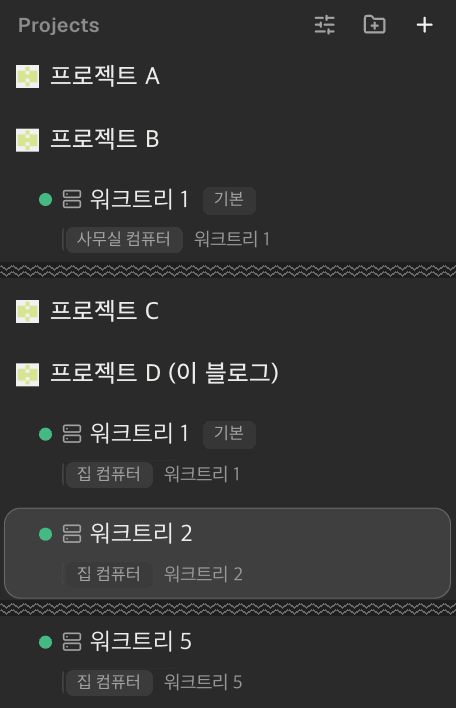
I keep several projects registered and split each one into worktrees. Switching between projects, and between worktrees inside a project, is a click either way. It feels noticeably lighter than juggling multiple editor windows and hunting for which one holds which project.
Orchestration: worktrees handing work to each other
This is the feature that made me drop VS Code. It's not just running several agents side by side, it's letting worktrees hand work to one another. The official docs even have a section on orchestrating work across multiple agents.
It sounds complicated, but what it does is simple. When the agent in worktree A runs into something outside its own scope, it leaves a request for worktree B, the one that owns that task. B reads the request on its own turn, handles it, and attaches a reply. A checks that reply the next time it runs.
It's the same handoff a person used to do by switching between two windows and copying notes across, except the agents now do it themselves.
This very blog is an example. This site runs across five worktrees. Separate ones own site design, blog posts, course-style lessons, and data analysis, plus one more that owns merging and deployment.
Say I need an image for this post. The worktree that owns posts leaves a request for the one that owns design, spelling out what's needed, why, and what it shouldn't overlap with among existing images. Design picks that up on its own turn, makes the asset, and writes back the reasoning behind the choices it made. Neither task sits idle waiting on the other; that's the whole point.
SSH: borrowing another machine's power
My most capable computer sits at a desk at home, and I'm the one who ends up out with a laptop. Tasks handed to an agent can run for tens of minutes, and the machine has to stay on the whole time. Carrying a heavy task around on a laptop alone doesn't really work.
SSH is the answer. It's a way of connecting remotely to another computer. Connect Orca to a remote machine and you get to run agents against that machine's files, terminal, and Git, exactly as if you were sitting in front of it. Remote machines get registered as cards, one per machine, in settings.
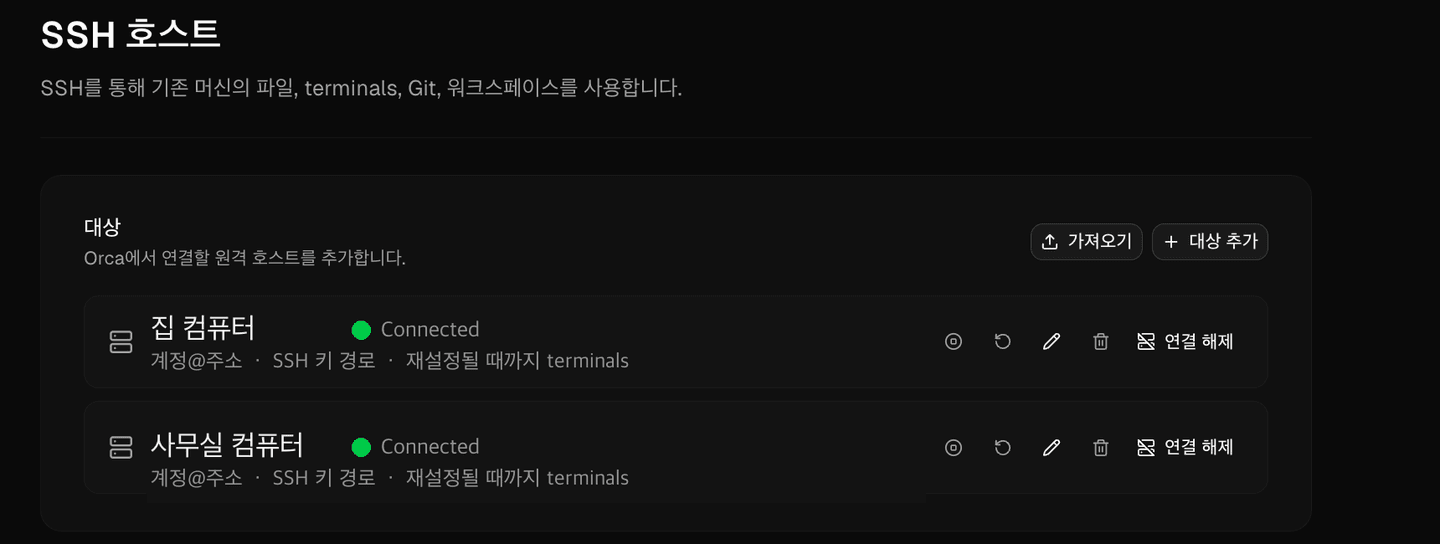
It reconnects on its own if the connection drops. So if your subway wifi cuts out and comes back, whatever was running doesn't get lost.
The same holds for checking a website you're building in a browser. Orca forwards the preview URL the remote machine is serving straight to your laptop's browser, so you see the screen running on a machine that's nowhere near you, right in front of you.
Remote connections by themselves aren't new; VS Code's Remote-SSH extension does the same thing. What's different is what happens after you connect. Everything above (worktree splitting, running several agents) keeps working exactly the same once you're connected to a remote machine.
I use my home machine as a server and connect from a laptop and a tablet. Anything long-running keeps going on the home machine. Closing the laptop lid doesn't stop the work.
Keeping work moving from your phone
When neither desktop nor laptop is within reach, there's a mobile app. It's still in beta: iOS comes through the App Store, and Android needs a direct installer download. Pair it with your desktop Orca once, and you can see the status of every running agent from your phone. Each worktree shows at a glance whether it's working, done, or waiting on you.
I keep work moving from my phone when I'm out. I check how far things got and send the next instruction. When an agent stops for a judgment call it shows up in the list as waiting on input, and a single reply sends it on its way. Miss that one line and hours sit idle, so handling just that while you're out already earns its keep.
That said, you're not opening code and editing it directly from your phone. The official docs are explicit that mobile isn't meant to be a full editor, calling it a remote control for something already running on the desktop. Better to keep decisions and real work there.
Who Orca is actually for: multiple projects, multiple machines
Orca is built for people who now hand a meaningful amount of work to agents. If any one of these three applies to you, it beats a regular editor.
- You juggle several projects and switch often: no more opening window after window hunting for which one holds which project
- Your working environment is spread across machines: your home and office computers sit in the same window
- You subscribe to two or more AI tools: split work by what each does best, and switch when one runs out of allowance
If you're running a single agent on a single project, your current editor is enough. Installing Orca just to run one agent in one worktree doesn't buy you much.
I'll cover what I skipped here in separate posts: the actual screen for registering SSH hosts and its settings, how to set up the rules worktrees use to hand work to each other, and where to look when mobile pairing drops.
Running one agent well and running several are different skills. If juggling windows has worn you out, it might be time to try a different tool. Start with one, then scale to two or three. Build a setup where adding more tools doesn't mean adding more work for you.
- Orca is an open-source ADE that runs multiple AI agents in one window. Where an editor centers a code pane, Orca centers a list of agents.
- It runs on Windows, Mac, and Linux. Windows is a download-and-run installer; Mac needs Homebrew in place first.
- Every task comes with its own worktree, an isolated workspace, so agents never collide over the same file.
- Worktrees can hand requests and replies back and forth, removing the copy-pasting a person used to do between two windows.
- Connect to a remote machine over SSH and worktree splitting plus multi-agent runs keep working unchanged. Work continues even when you step away.
- The mobile app lets you check status and send instructions from anywhere. Replying to a stalled agent so it resumes is what earns its keep on a phone.
Frequently asked questions
Did Orca coin the term ADE?
No, it isn't Orca-specific terminology. The name started catching on as several tools for managing multiple agents launched around the same time. It's closer to industry shorthand for distinguishing this category from an IDE than an official standard.
Can I bring in a project I'm already working on?
Yes. Orca isn't a tool for creating new project folders, it opens an existing folder and attaches a workspace to it. It does need to already be under Git, though, since that's what worktrees require.
If I delete a worktree, does the work inside it disappear too?
If you delete it without merging first, yes, that work doesn't survive. A worktree is a temporary workspace, and results only stick around once merged back into the original. Get in the habit of checking you've merged before deleting.
Is it worth it if I'm working alone?
This is a tool for when you have multiple agents, not multiple people. Even solo, if you're handing an AI two or three things at once, that alone is a reason to split them up. If you only ever assign one task at a time, a regular editor is enough whether you're solo or not.
Do I need WSL to run it on Windows?
No. There is a native Windows installer, so downloading and running that is all it takes. WSL lets you run Linux inside Windows, but Orca does not require it.
Do I need to know Git to use it?
Since worktrees are a Git feature, it helps to understand the concept, but you'll rarely type a Git command directly. A worktree attaches automatically when you create a task, and merging is a button click in the interface. Knowing that an original and its copies exist separately before eventually merging back is enough to get started.
Sources (4)Expand to see all sources
- Orca official site, feature overview and product summary (verified 2026-09-07)
- GitHub stablyai/orca repository, supported platforms, list of 29 agents, MIT license, star count (verified 2026-09-07)
- Orca official docs, SSH remote connections, auto-reconnect, port forwarding (verified 2026-09-07)
- Orca official docs, mobile pairing and the "not a full editor, a remote control" framing (verified 2026-09-07)