ChatGPT Memory and Custom Instructions: How to Get AI to Remember You
Chat-based AI can turn a conversation into drafts, tables, and practical help. But when you open a new chat, it does not automatically begin with your situation from earlier conversations. ChatGPT, Claude, and Gemini each offer memory settings that can carry your context and response preferences forward.
“I told you that already. I’m not a developer, remember?” If you have to type your job and preferred answer style again every time you open a new chat, you already know why this lesson exists. Even after comparing the three services in the previous lesson, the same friction remains when you actually ask them to do work.
This lesson shows where to set up memory and instructions in ChatGPT and Claude, then how to review and correct them. We will take a brief look at Gemini’s memory and Instructions for Gemini too, and finish with information you should never store. Menus change often, so these steps are current as of August 2026 and link to each company’s official documentation.
- Memory / Custom Instructions
Memory is automatic recall: AI saves information from your conversations when it considers it useful. Custom instructions are rules you enter yourself, such as “Keep answers short and use plain English.” Memory can accumulate without you noticing, while custom instructions apply exactly as written.
Memory settings: memory and custom instructions
If you have already asked AI to do real work in the previous lesson, now you can save the details you keep repeating. The next lesson covers choosing a model, and the one after that uses thinking modes to adjust response speed and how much time the model spends reasoning.
All three services use different names, but the underlying setup has two parts: memory that is saved automatically from conversation and custom instructions that you write yourself.
| Memory (automatic) | Custom instructions (manual) | |
|---|---|---|
| ChatGPT | Memory (auto-saved from chats, files, connected apps) | Custom Instructions |
| Claude | Memory (auto-generated from conversations) | Project instructions (set per project) |
| Gemini | Memory of past chats | Instructions for Gemini |
Set up memory in ChatGPT
Let's start with ChatGPT. Open the memory screen first, then the place where you enter custom instructions.
ChatGPT memory: check, edit, and turn it off
Go to Settings → Personalization → Memory to turn memory on or off. The memory summary shows what ChatGPT has saved about you.
To correct an item, type the change in the box below the summary. You can also highlight a specific sentence and edit it directly.
The book icon below a response shows which sources shaped that answer. It can show custom instructions, past chats, files, or memory.
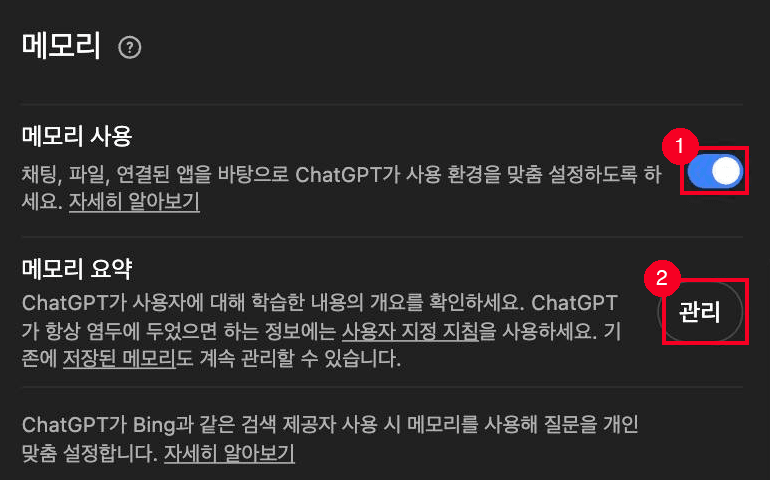
① Turns memory on and off. ② Manage opens the memory summary, where you can review and edit what ChatGPT remembers about you.
ChatGPT custom instructions: 1,500 and 5,000 characters
In Settings → Personalization, turn on “Enable customization.” Enter your custom instructions in the fields there.
Free and Go plans allow up to 1,500 characters. Plus, Pro, and the other plans listed by OpenAI allow up to 5,000. The feature is available on every plan, and saving it applies the change immediately to every chat, including existing conversations.
If you are unsure what to write, start with one of these examples:
- Small-business owner: “I run a café. Focus your answers on concrete steps and avoid jargon.”
- Job seeker: “I’m a fifth-year accounting professional preparing to change jobs. Write documents in a formal, respectful tone.”
Keep it simple: one line about who you are and one line about the response format you want. If you keep adding the same sentence before every prompt, that sentence belongs in custom instructions.
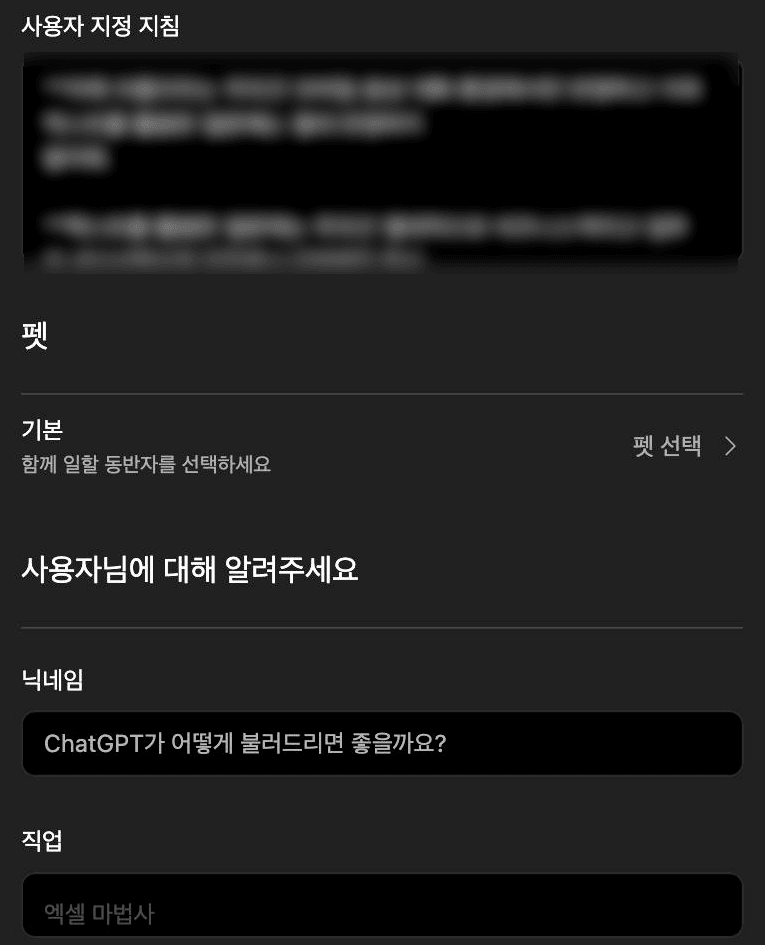
The roles are easier to manage when you separate them. Put explicit facts and instructions in custom instructions, and let memory pick up details that emerge naturally during conversation.
Fixing "memory full"
“Memory full” is a common search phrase among people who have used ChatGPT for a long time. The older “saved memories” system required users to manage individual entries. As of August 2026, the new system is the default and automatically updates a memory summary, so filling and clearing memory are handled automatically there.
If you still use saved memories, go to Settings → Memory, open each entry, and delete anything that is no longer useful. Start with an old address, a finished project, or a topic you asked about only once. Deleting a memory does not delete the original chat text; delete that separately from your chat list if you want it gone too.
Set up memory in Claude
Turn on Claude memory and view the list
Claude also creates memory automatically from conversations. Go to Settings → Memory and turn on “Generate memory from chats.” The free plan includes memory.
The memory panel lists what Claude remembers by category. You can also tell Claude “Remember this” during a conversation to make a correction.
Claude project instructions: separate memory by project
Claude’s useful distinction is separate memory for each project. Every project has its own memory space and instructions, so “running my shop” and “studying for a certification” can stay in separate contexts.
Because each project has its own instructions, they fill the role of custom instructions at the project level. Free accounts can create up to 5 projects. As the free-plan lesson explains, reusing files already added to a project does not count against your usage limit.

On a free account, the settings screen is simple. One toggle turns memory generation on or off.
Gemini memory and Instructions for Gemini
Gemini has memory too. On the web (gemini.google.com), open Settings & help → Personal Intelligence and turn on Memory. The equivalent of custom instructions is called “Instructions for Gemini.”
Go to Settings & help → Personal Intelligence → Instructions for Gemini and add a response rule such as “Start with a short summary.” The exact menu labels may vary slightly across official documentation. If you cannot find the feature, check the settings menu once more.
These features are available only to some users and only with personal Google accounts. They are not available on work or school accounts. Memory also requires you to be at least 18 and to have Keep Activity turned on. If the menu is missing, check the account type first.
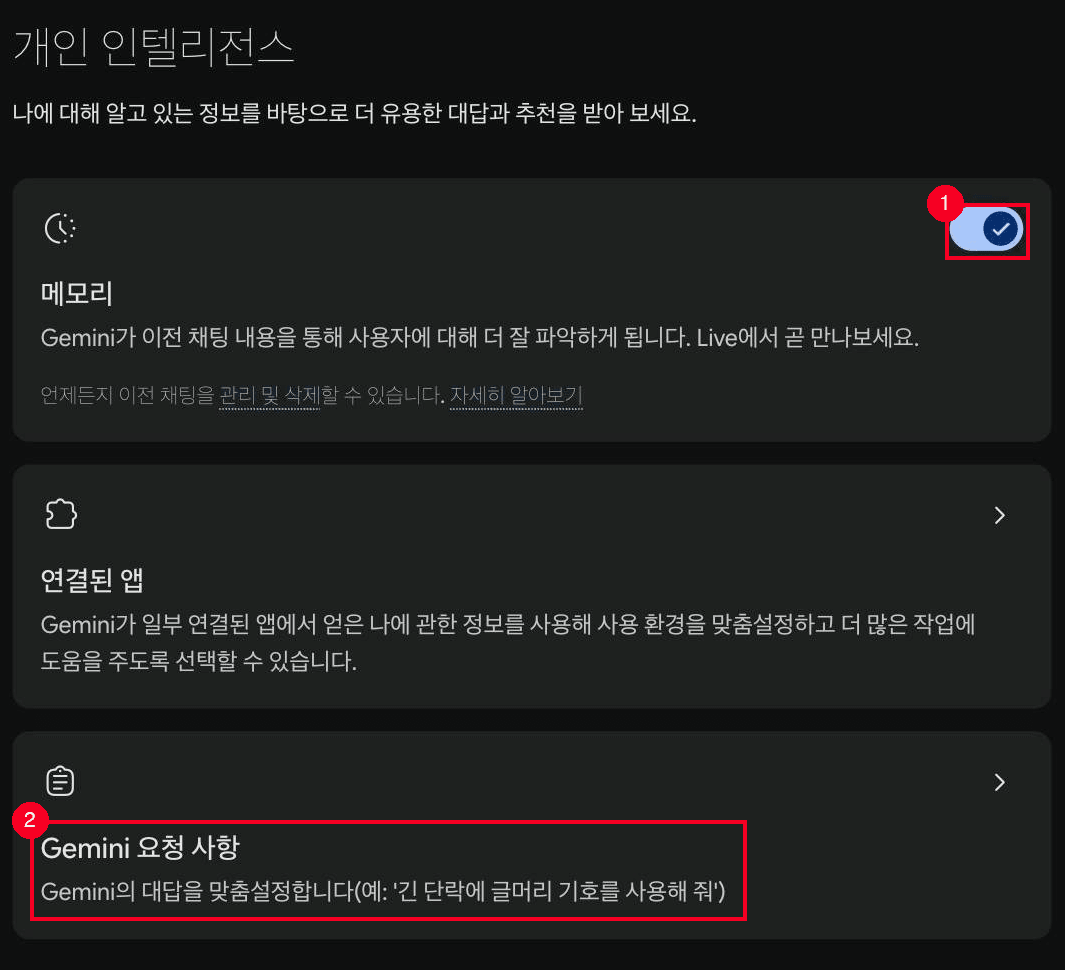
① The Memory toggle lets Gemini remember based on past chats. ② The Instructions for Gemini setting is where you register response rules.
AI memory security: what not to let AI remember
Memory is useful, but sensitive information can be saved along with everything else. OpenAI’s official documentation warns that sensitive information may appear in memory. As a rule, do not enter national ID numbers, bank account details, or passwords into a conversation in the first place.
For a conversation you do not want remembered, use a temporary mode. ChatGPT’s Temporary Chat does not use existing memory or create new memory. Claude’s Incognito chat serves the same purpose; turn it on with the ghost icon in the chat window, and the conversation is not saved to history or used for memory. On Team and Enterprise organization accounts, however, Incognito chats are still covered by the organization’s data export and retention policies.
This matters even more later in the track. After the pricing lesson, the connector lessons will have you link AI directly to your documents and email. You will need to decide what AI can see and what it should never access.
- AI memory has two sides: memory (saved automatically from conversation) and custom instructions (fixed rules you write yourself)
- ChatGPT: manage memory and custom instructions under Settings > Personalization; instructions allow 1,500 characters on Free and Go, and 5,000 on Plus, Pro, and other plans
- Claude: memory is available on the free plan; separating memory and instructions by project is its strength (free accounts get 5 projects)
- Gemini: Memory and Instructions for Gemini both live under Personal Intelligence in settings. They are available to limited users and personal accounts only
- Sensitive information may remain in memory. Use Temporary Chat (ChatGPT) or Incognito chat (Claude) for conversations you do not want remembered
Frequently asked questions
How do I delete ChatGPT's memory?
Go to Settings > Personalization > Memory. From the memory summary, edit or delete entries. Type a change into the box below the summary, or open the three-dot menu and choose 'Delete and turn off memory' to clear everything and turn memory off. This control is available on the web and is rolling out to mobile. Deleting memory does not delete the original chat text.
Should I set up memory or custom instructions first?
Start with custom instructions. They apply exactly as written from the first message, so you can see the effect immediately. Memory fills in gradually on its own as you keep chatting.
What is the character limit for ChatGPT custom instructions?
As of August 2026, Free and Go plans allow up to 1,500 characters, while Plus, Pro, and other plans allow up to 5,000. All plans can use the feature.
Does Gemini have a memory feature?
Yes. Under Settings & help, go to Personal Intelligence to turn on memory based on past chats, and use Instructions for Gemini in the same section to register response rules. It is currently available to limited users and works only with personal Google accounts, not work or school accounts.
Is my personal information safe if AI remembers it?
Sensitive information you type into a conversation can end up saved in memory. Keep national ID numbers, bank details, and passwords out of chats entirely. For conversations you do not want remembered, ChatGPT's Temporary Chat or Claude's Incognito chat excludes the conversation from memory.
Sources (7)Expand to see all sources
- OpenAI Help Center, "Memory FAQ": memory summary, editing, deletion, Temporary Chat, legacy saved memories (checked 2026-08-21)
- OpenAI Help Center, "ChatGPT Custom Instructions": availability across all plans, character limits, settings path (checked 2026-08-21)
- Claude Help Center, "Use Claude's chat search and memory to build on previous context": memory settings, per-project separation, Incognito chat (checked 2026-08-21)
- Claude Help Center, "What are projects?": project instructions and the free-plan limit of 5 (checked 2026-08-21)
- Google Gemini Help, "Get personalization in Gemini Apps": the three personalization features, limited availability, personal accounts only (checked 2026-08-21)
- Google Gemini Help, "Get personalization with memory of your past Gemini chats": Memory toggle path and requirements (checked 2026-08-21)
- Google Gemini Help, "Customize Gemini's responses with your instructions": Instructions for Gemini path and examples (checked 2026-08-21)